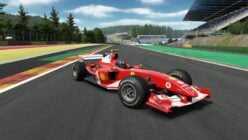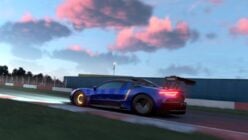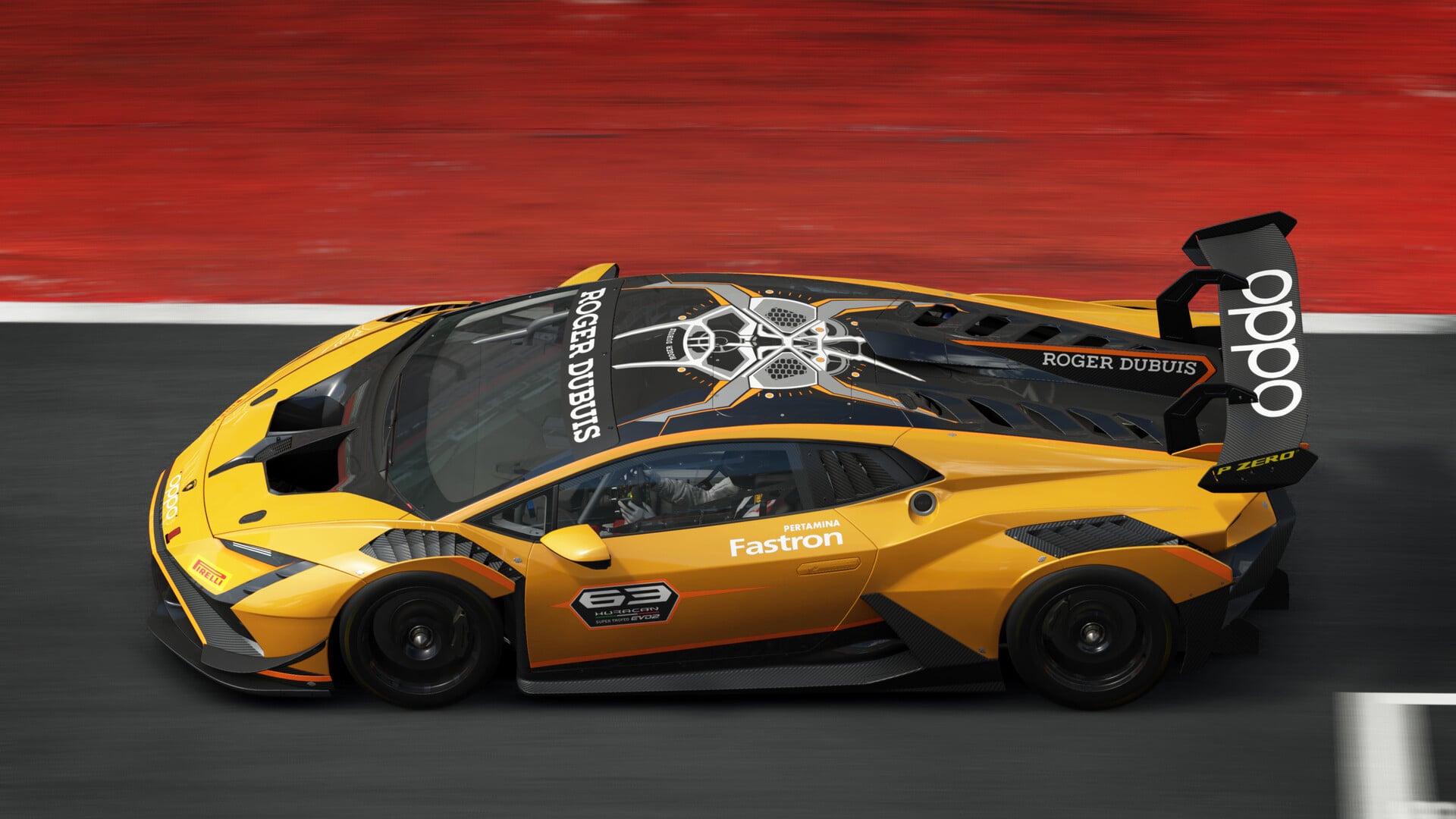
Assetto Corsa EVO is the third title in the franchise developed by Kunos Simulazioni. Currently available via Steam Early Access, the game gives players a taste of what’s to come from Kunos’ latest racing simulation.
The game is currently only available on PC, which naturally raises the question of whether your hardware is up to the task. One of the hallmarks of PC gaming is being able to tailor the experience to your exact needs, whether you have a custom rig built on a budget or one with no expenses spared. Maximizing performance while getting the most ‘bang for your buck’ is the intent of this guide.
Let’s detail the test rig: we used an AMD Ryzen 7 5800X paired with a Radeon RX 6900 XT, 16GB of 3600MHz DDR4 RAM, and installed the game on a 2TB Crucial P5 Plus NVMe SSD. This was a powerful machine for its time and remains plenty capable by today’s standards. Additionally, we have a GeForce RTX 2080 on hand as well to test the performance gains at the lower end of the spectrum.
Table of Contents
- Testing Approach and Performance Baseline
- Recommended Optimized Settings
- Upscaling and Advanced AA
- Early Access
- There’s Room to Grow
Testing Approach and Performance Baseline
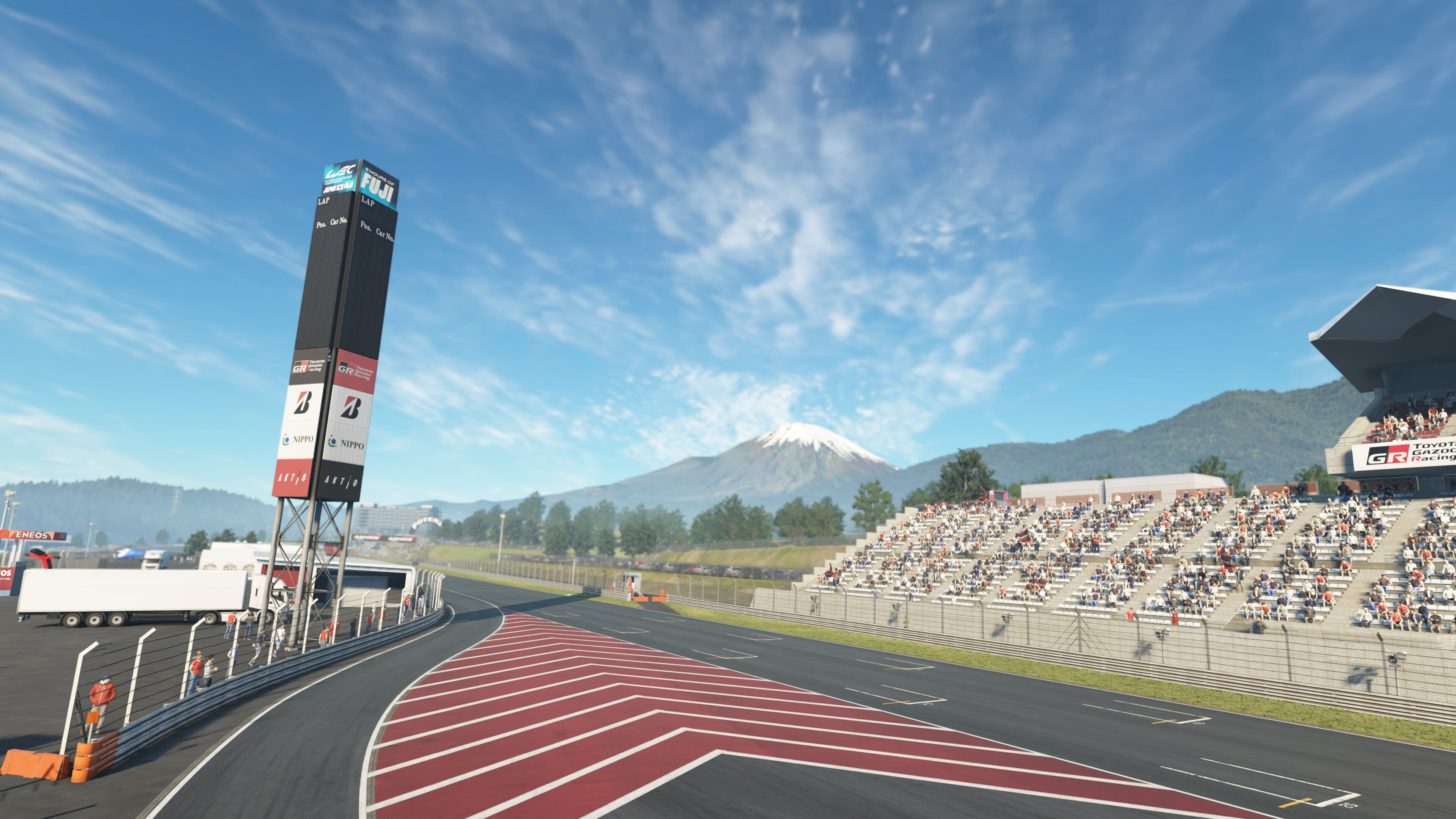
Our goal is to examine the graphics settings, identify opportunities for performance improvements, and minimize the impact on visual fidelity.
We performed all optimizations at a native resolution of 1440p. The required graphics horsepower will decrease if you play at 1080p, especially when using image upscalers like Nvidia DLSS or AMD FSR. Conversely, playing at 4K will demand more performance, likely increasing the reliance on upscaling technologies.
To illustrate the potential gains on our test system at 1440p (without FSR or DLSS), switching from the ‘Ultra’ preset to our optimized settings resulted in a performance increase of at least 15%. If your goal is a stable 60 FPS experience without significantly compromising visuals, these settings should help.
Recommended Optimized Settings
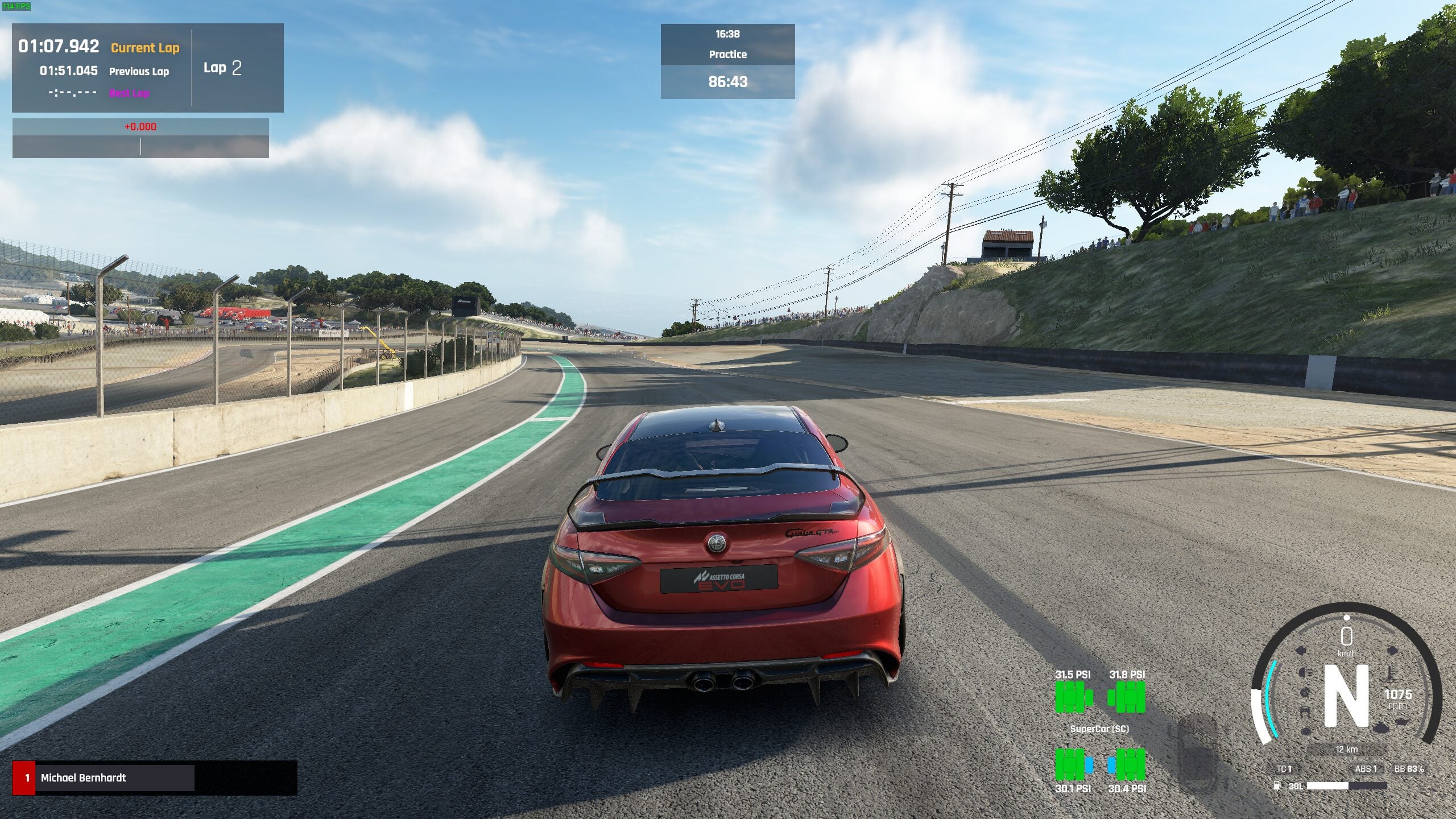
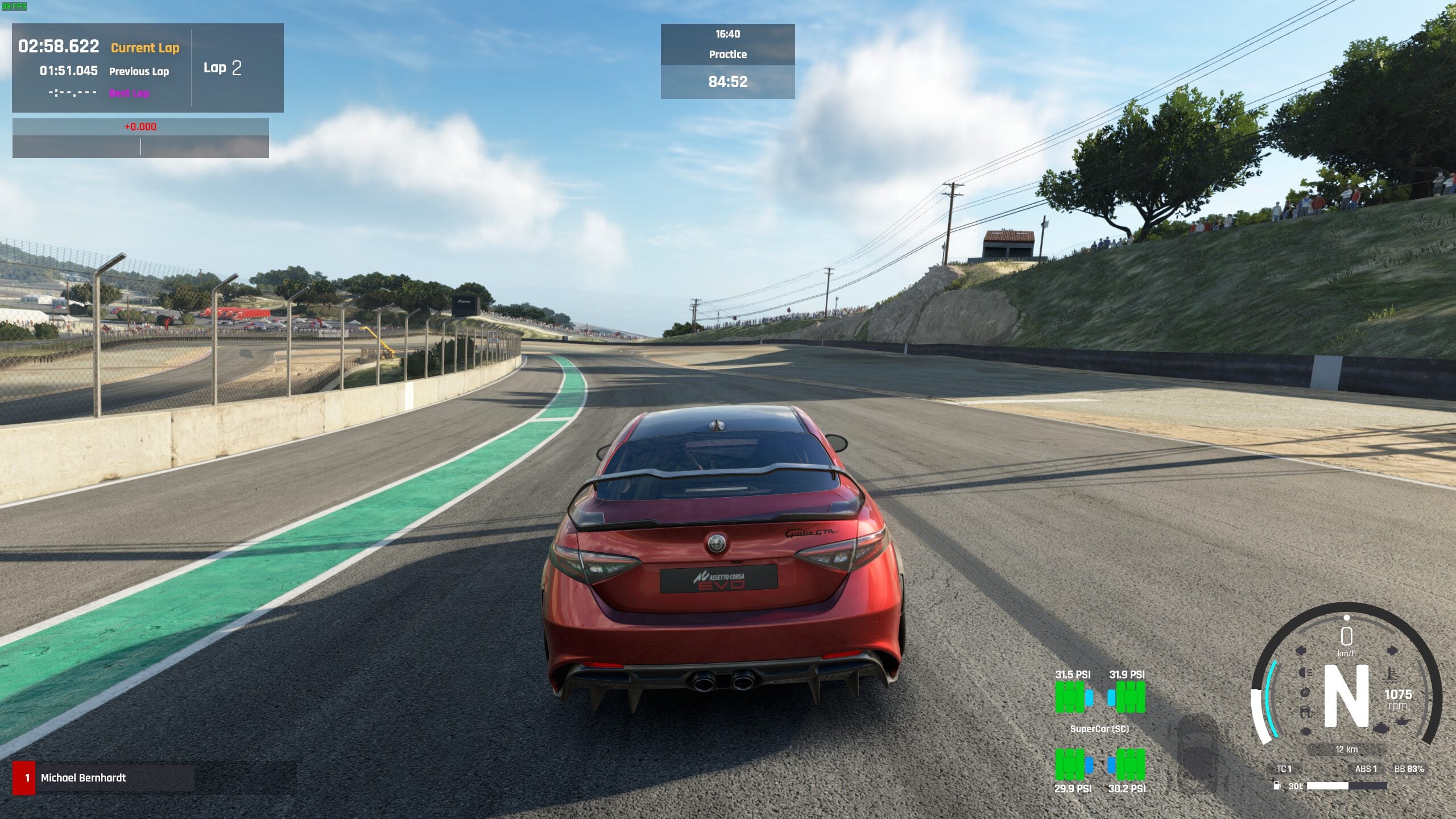
- MSAA – 2x
- Filmic AA – Cinematic
- FXAA – Enabled
- Anisotropic Filtering – Ultra
- Level of Detail – Ultra
- Experimental Static Level of Detail – Off
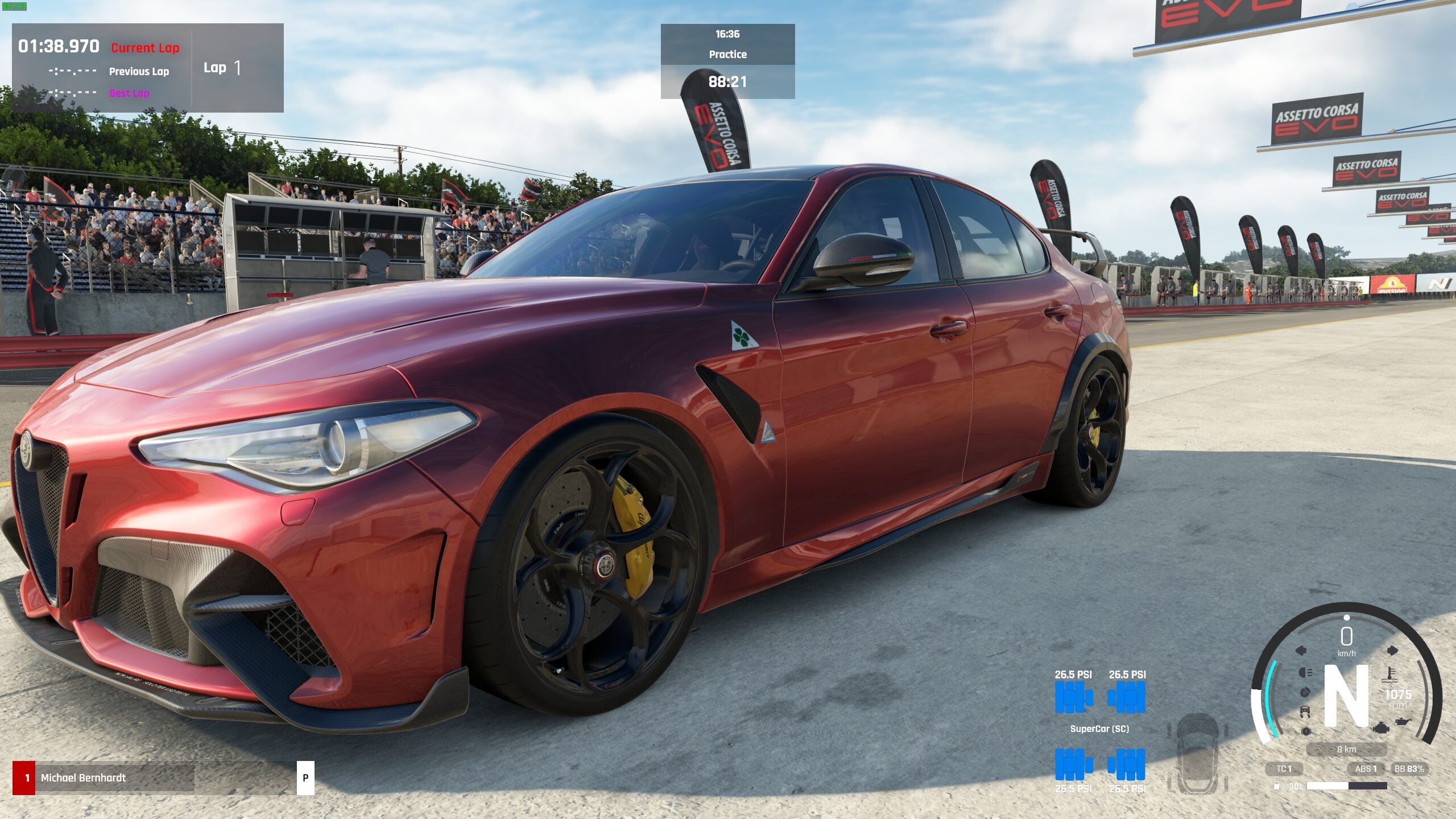
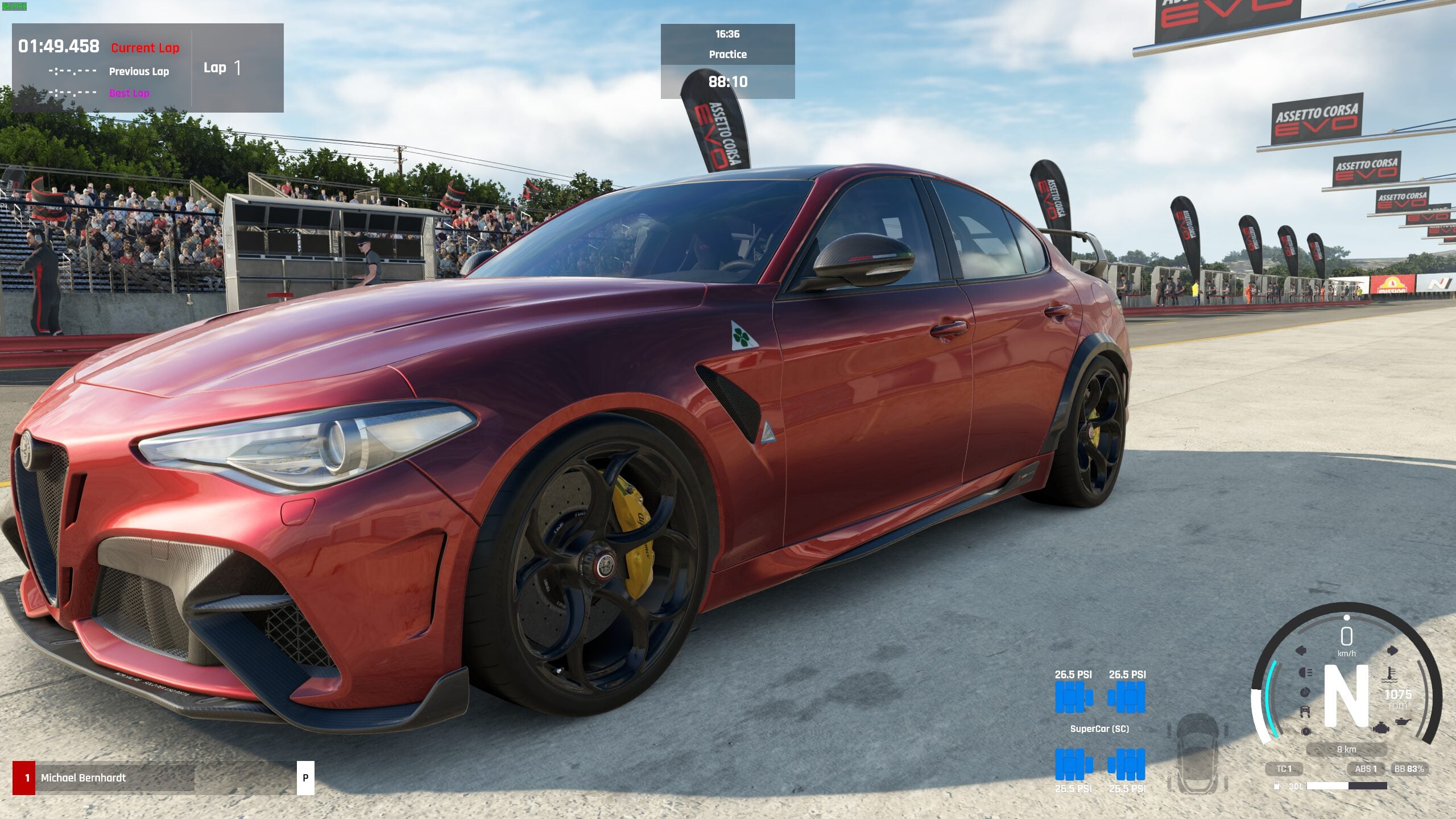
- Vehicle Level of Detail – Ultra
- Global Illumination Update Frequency – Ultra
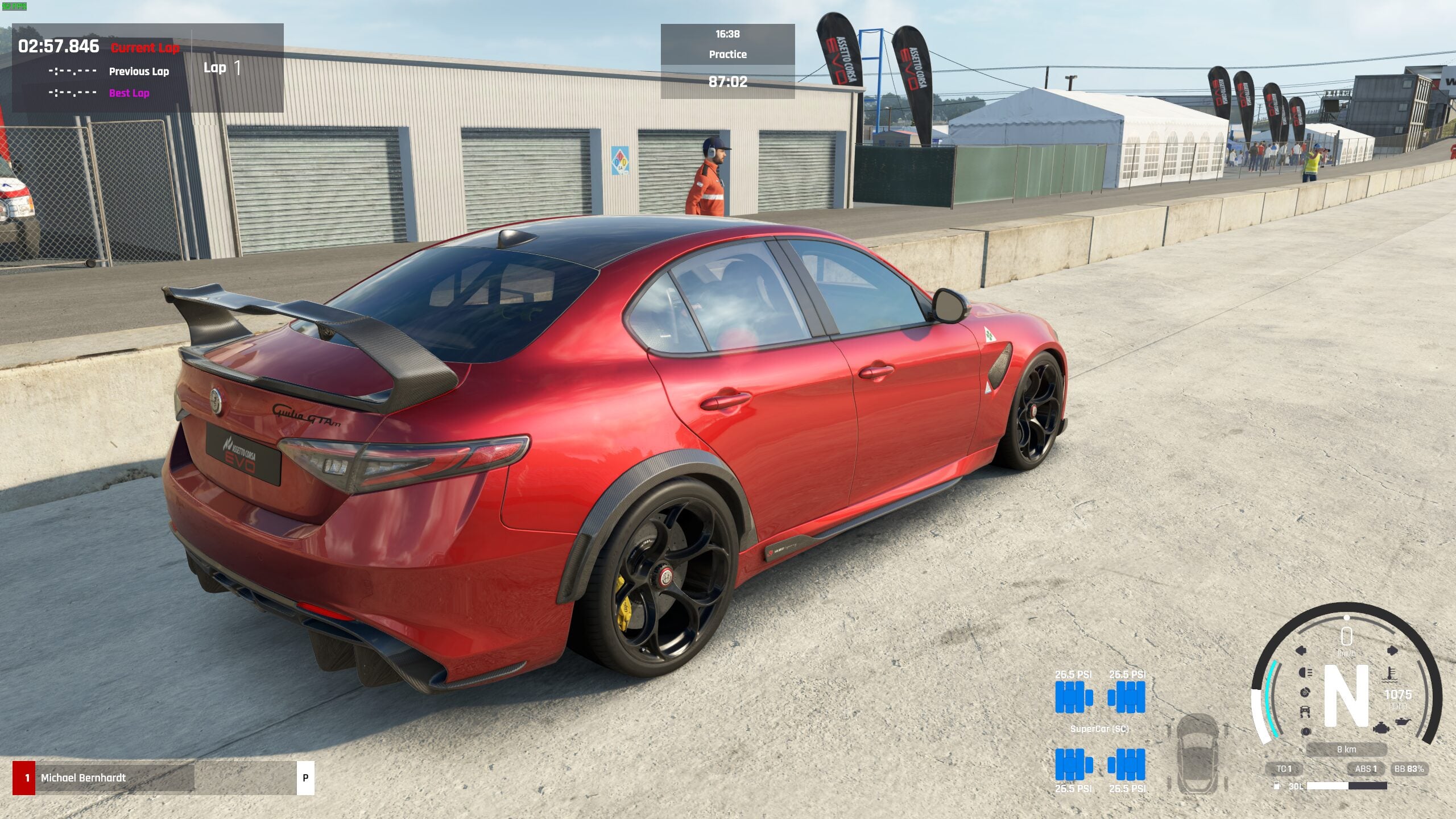
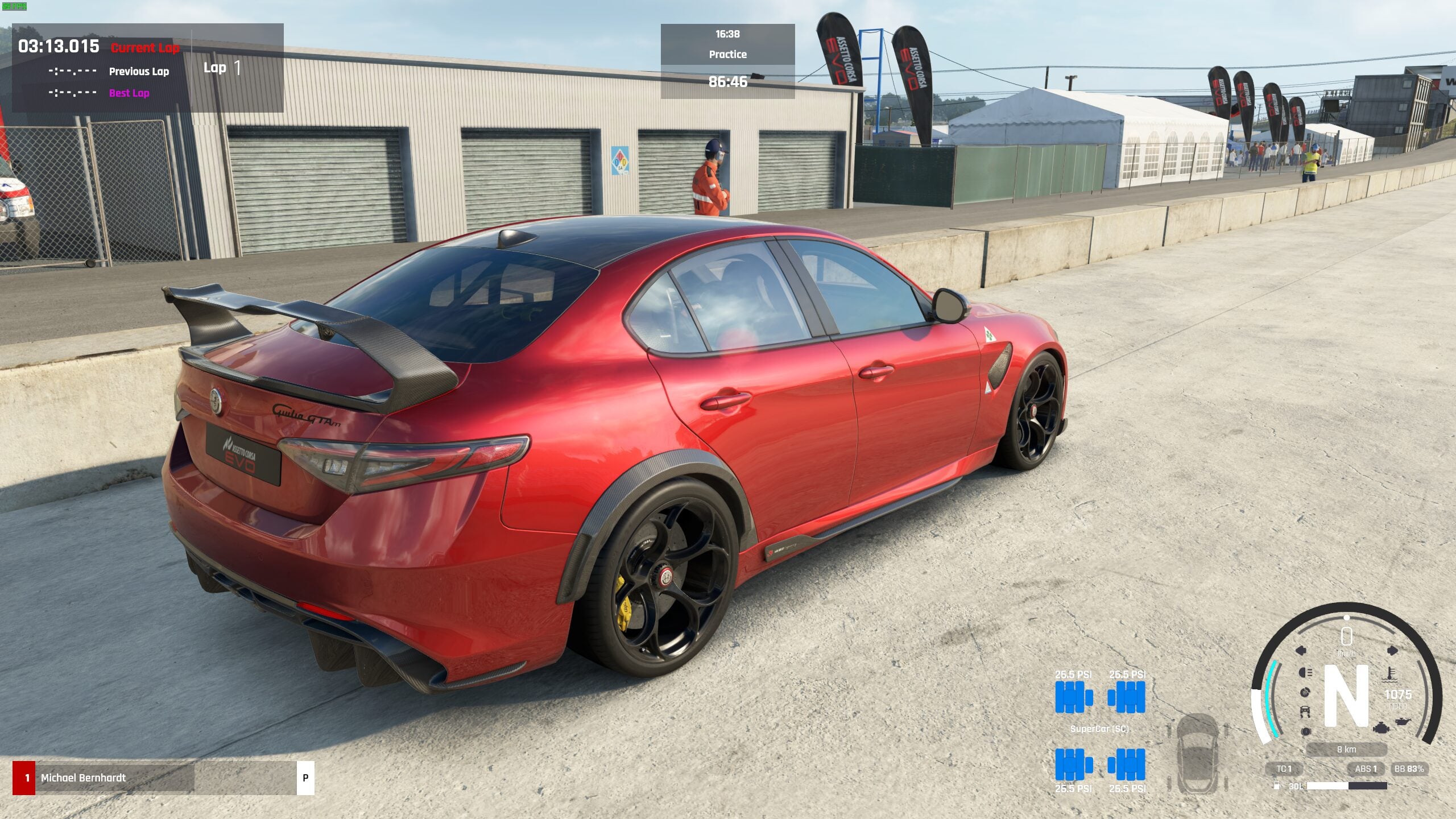
- Ambient Occlusion – Low (We observed no discernible visual improvement on higher settings.)
- Volumetrics – High
- Environment Reflection – High
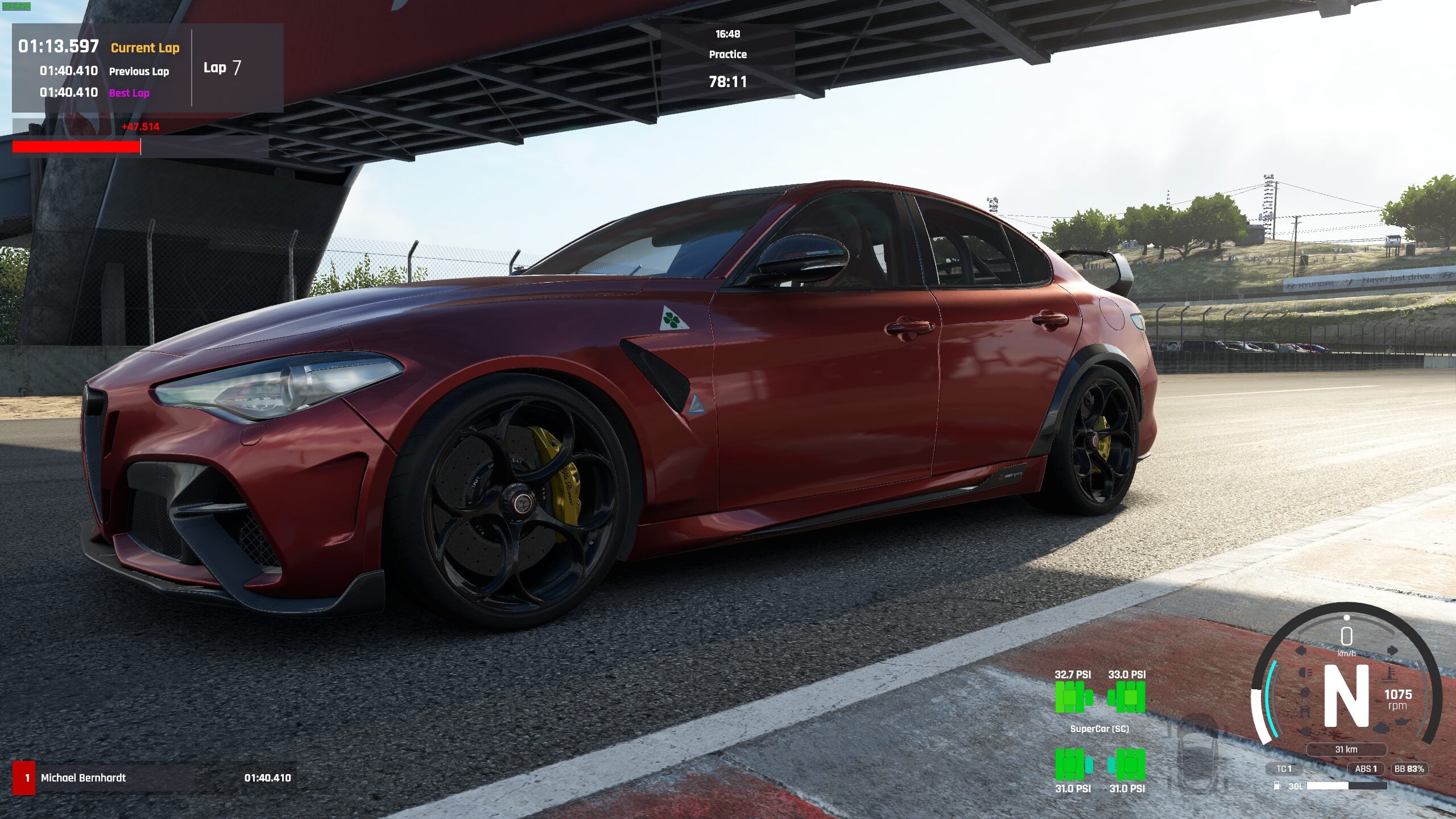
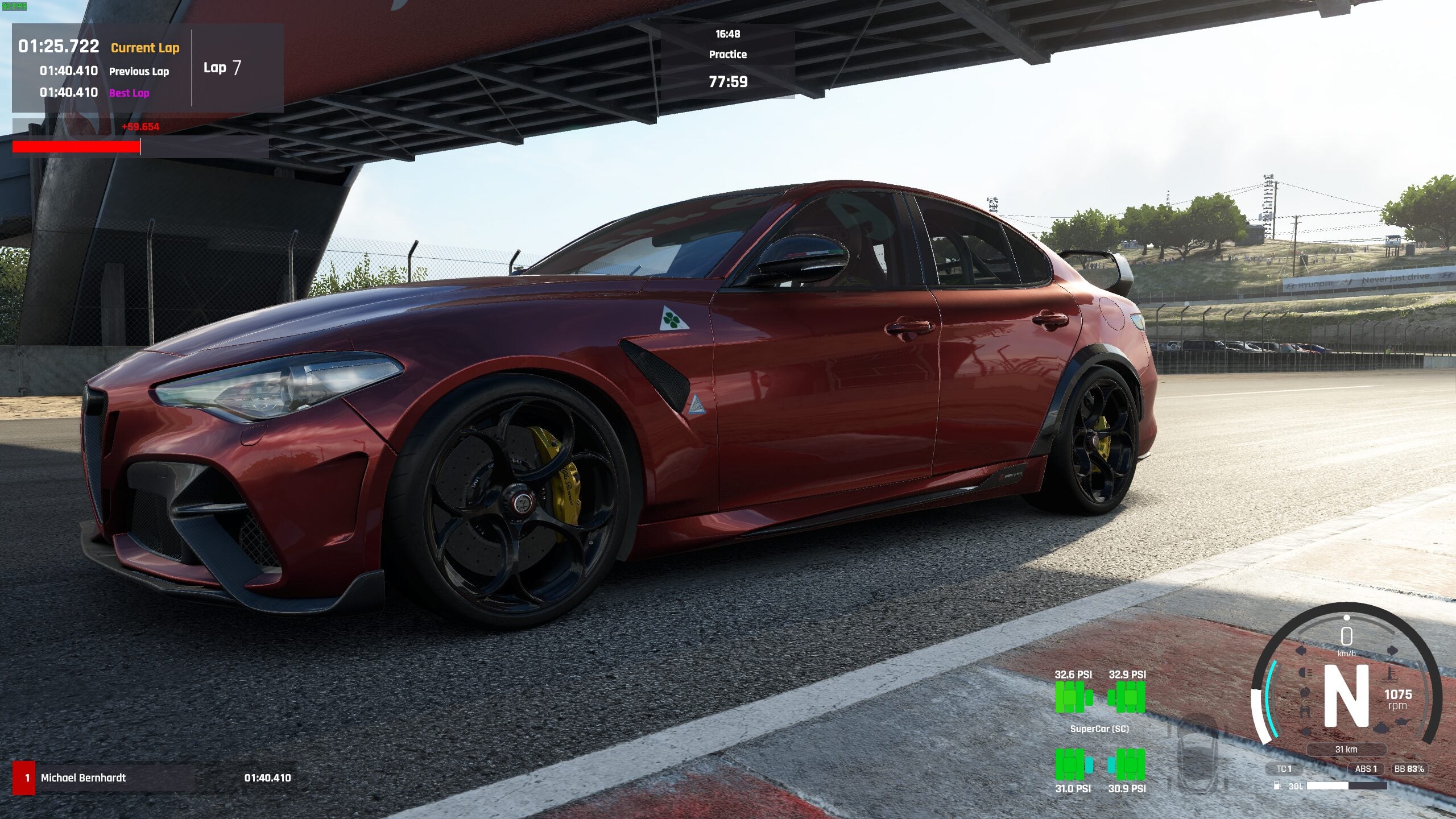
- Car Reflection – Medium or High (‘Ultra’ offers slightly clearer reflections but comes with a noticeable performance cost.)
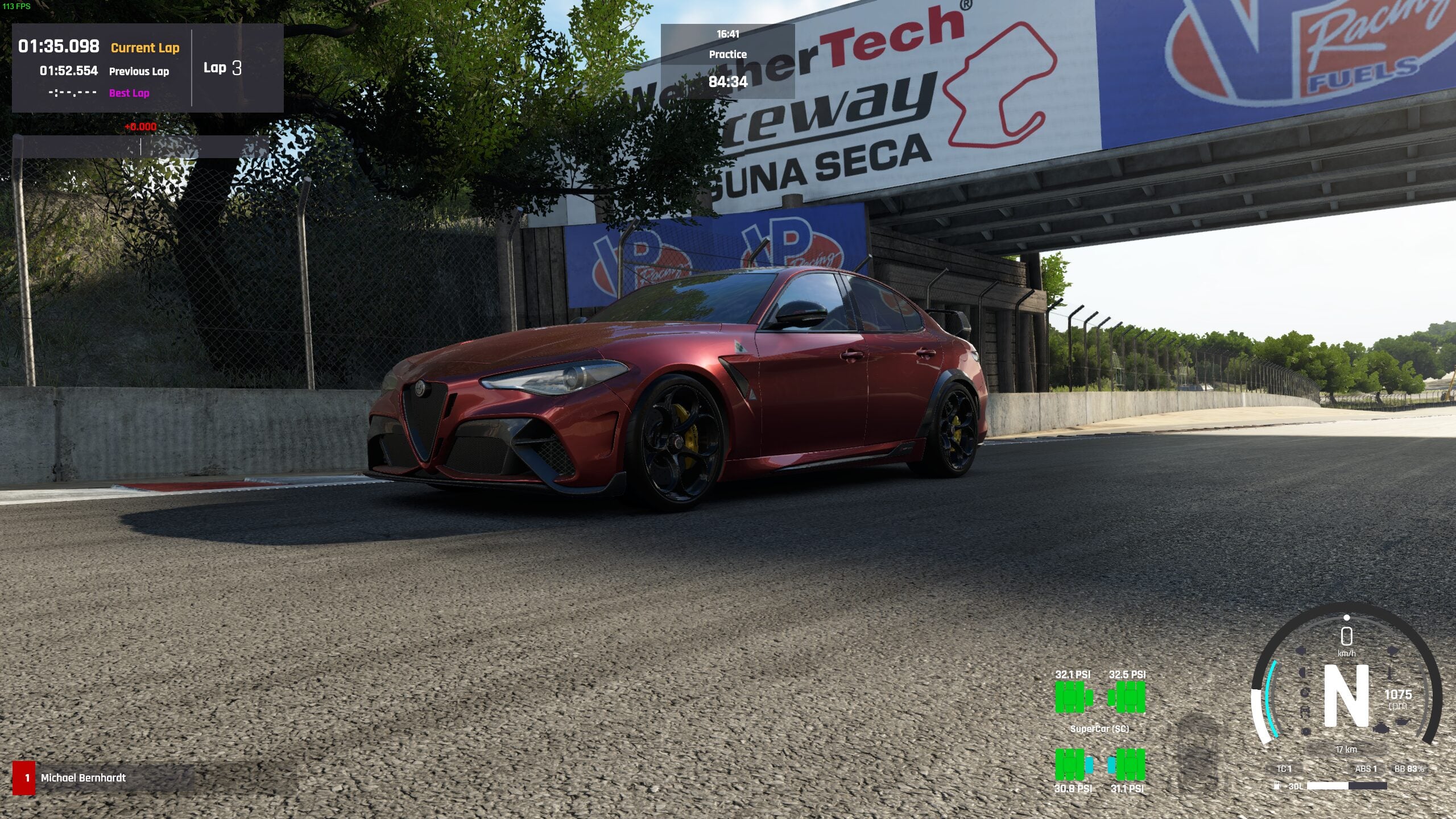
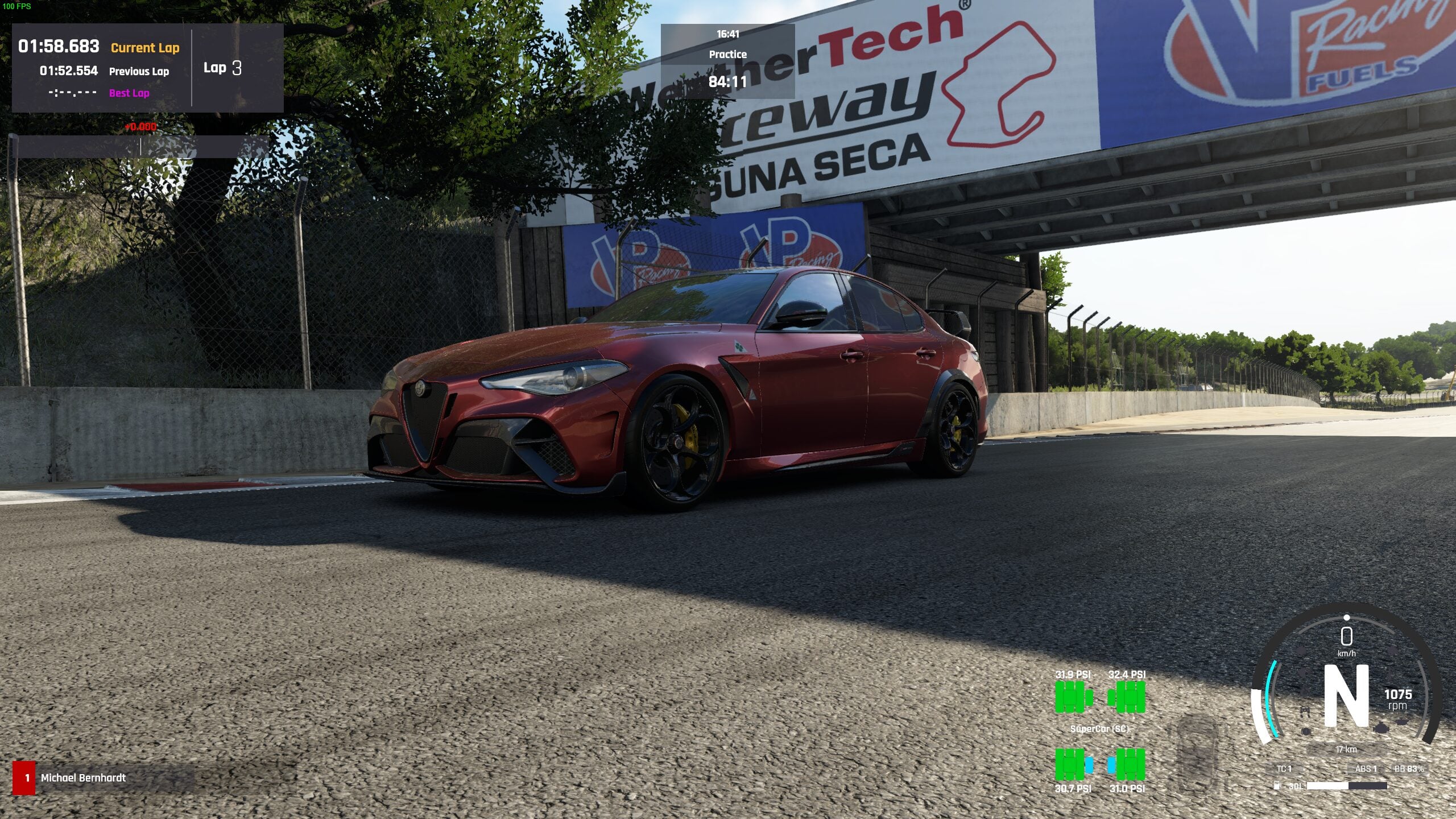
- Shadows – Medium or High
- Experimental Sim Shadows – Off
- Screen Space Shadows – Full Resolution
- Grass Density – Off or Low (We found negligible visual difference above ‘Low’. This setting may not be functioning as intended.)
- Clouds Quality – Low (Higher settings offer minimal visual improvement only noticeable upon close inspection. Since ‘Ultra’ also has negligible performance impact currently, you could use that too, but ‘Low’ saves theoretical resources.)
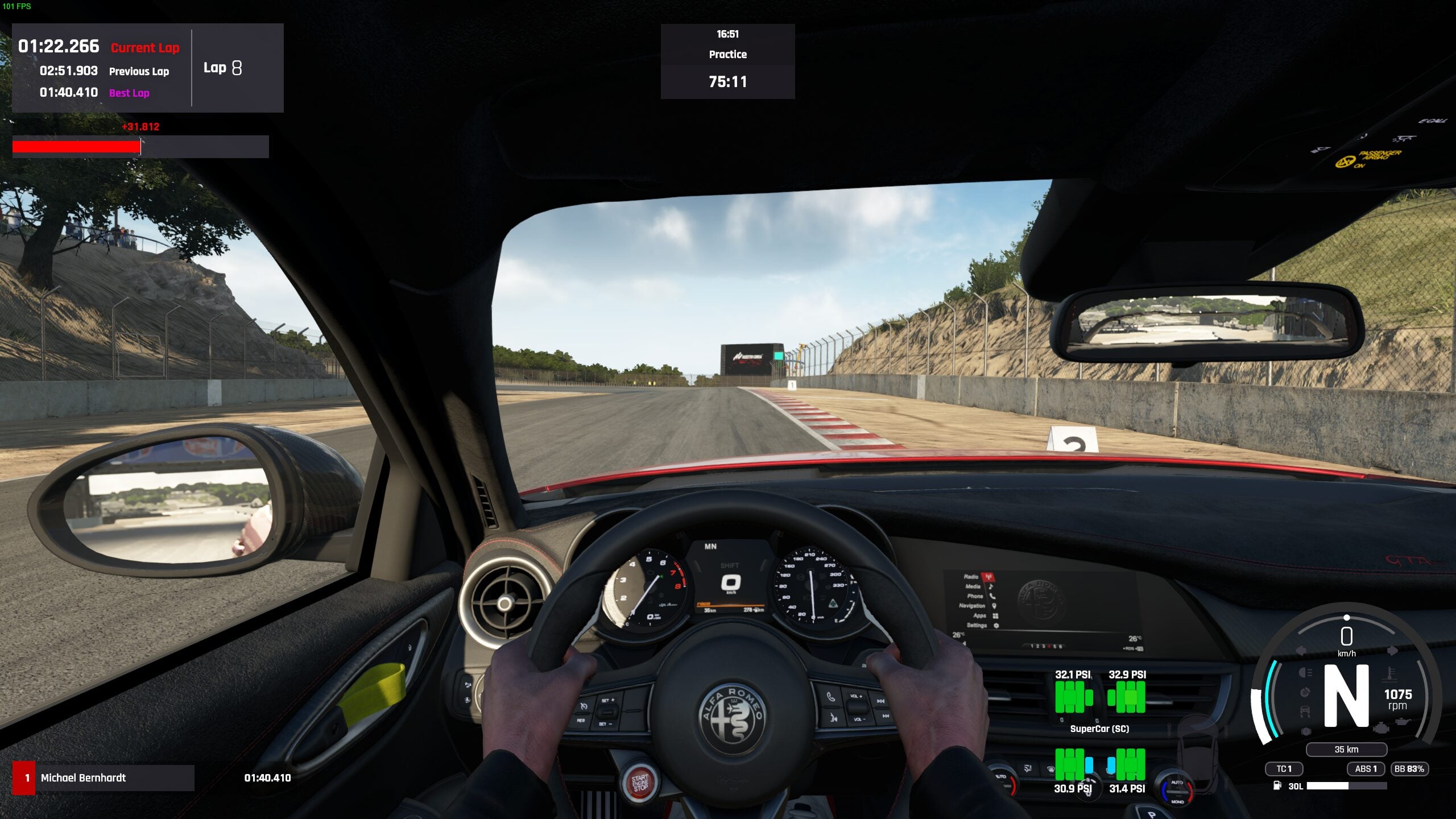
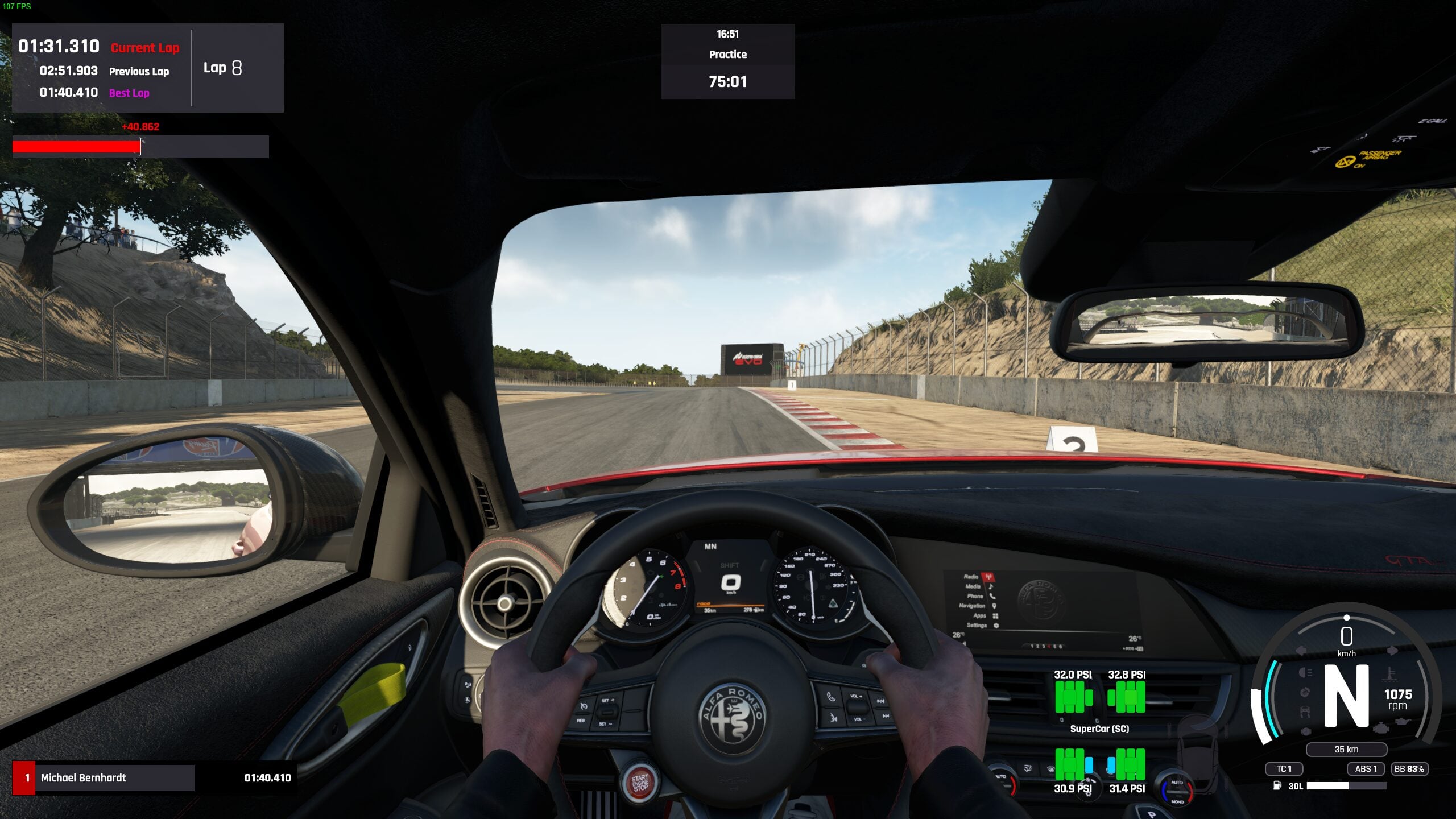
- Mirrors Resolution – Medium (Higher settings offer little benefit beyond aesthetics in the current build. Consider increasing this if/when multiplayer is implemented.)
- Mirrors LOD Quality – Medium
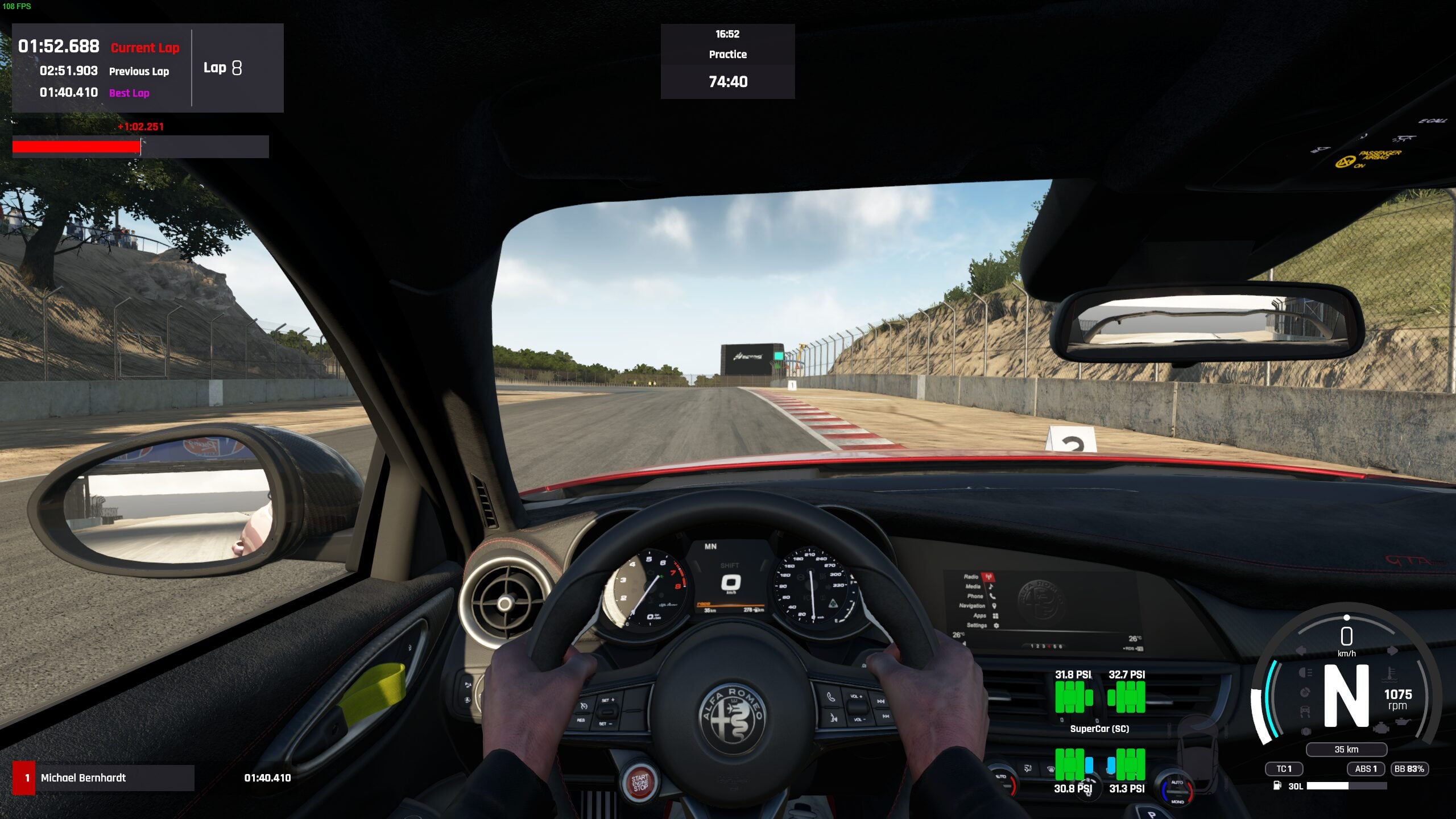
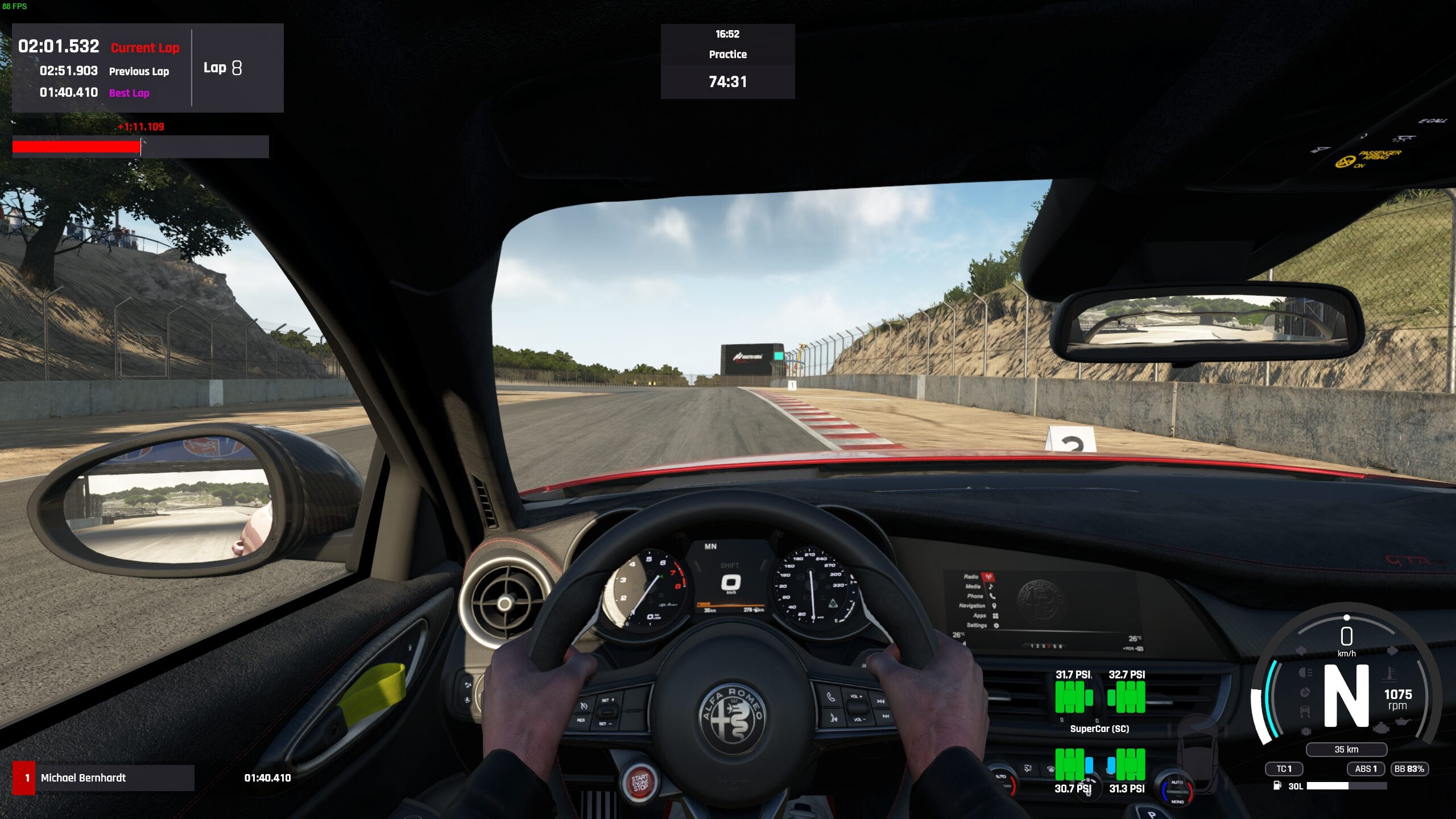
- Mirrors View Distance – High or Ultra (This controls render distance in mirrors. Caveat: On ‘High’, other cars might occasionally pop in or out of view during races. While better than ‘Medium’, this can be distracting. ‘Ultra’ largely eliminates this pop-in with minimal performance loss. Adjust based on whether achieving a consistent 60+ FPS is critical.)
- Optimized Rendering – On
Upscaling and Advanced AA
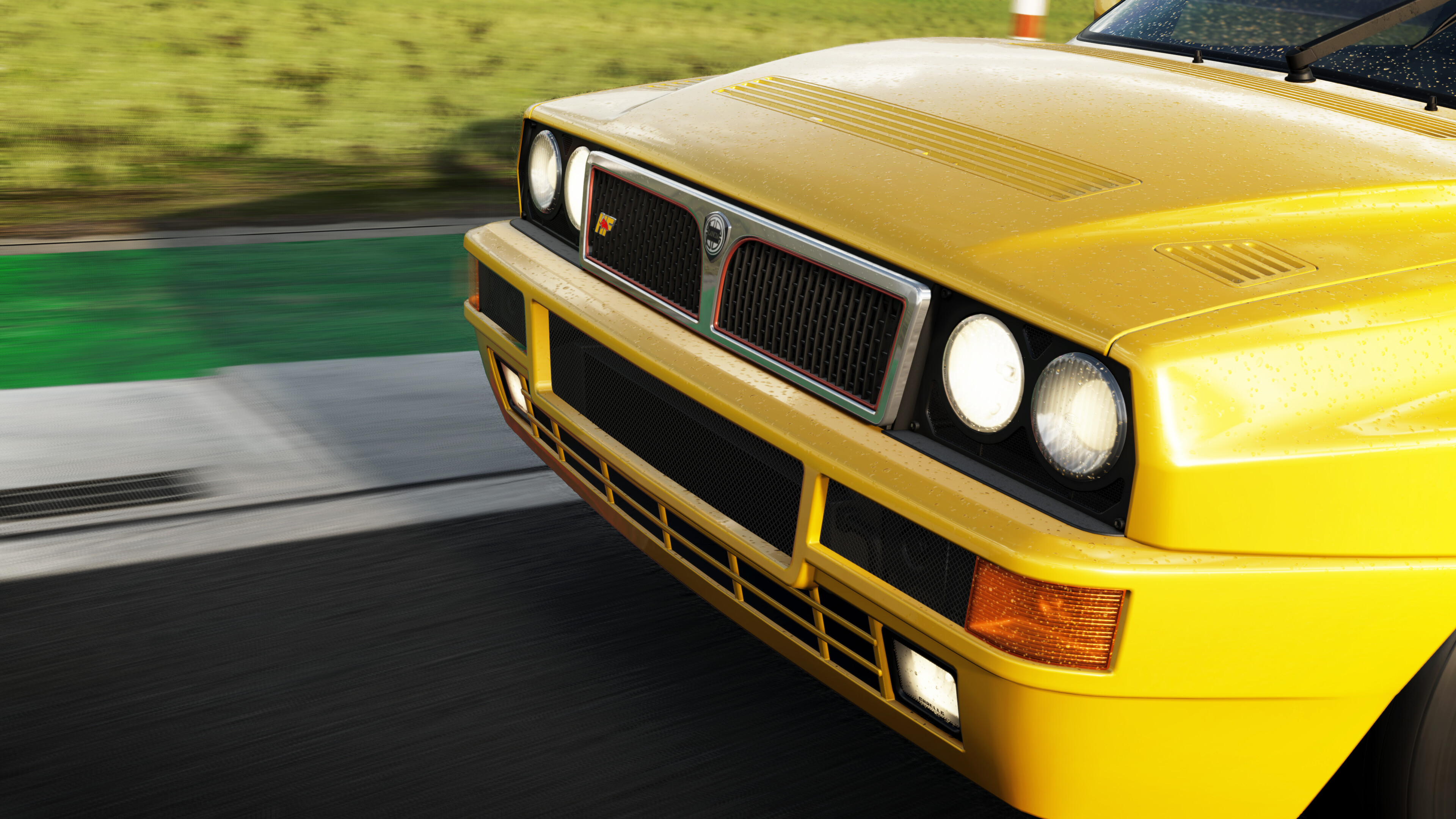
If your GPU has sufficient power, enabling Nvidia DLAA (Deep Learning Anti-Aliasing) or AMD’s Native AA can provide superior image quality and sharpness compared to the standard in-game anti-aliasing (AA) options, though they do incur a performance cost.
If DLAA or Native AA impact performance too heavily, consider using Nvidia DLSS or AMD FSR upscaling to regain frame rate. For 1080p displays, we recommend the ‘Quality’ or ‘Ultra Quality’ presets for FSR/DLSS. ‘Balanced’ is viable, but image quality may start to degrade noticeably. For 1440p, ‘Quality’ or ‘Balanced’ are good choices. For 4K, the ‘Performance’ preset is often necessary.
We observed a minor issue with FSR: some temporal artifacting is visible on the steering wheel when turned in the cockpit view. While not overly distracting, we hope this is addressed in future updates. This artifacting occurred even with FSR set to ‘Native AA’ mode. Unfortunately, this is exclusive to FSR as switching over to DLSS on the RTX 2080 revealed no such artifacts.
Early Access
It’s crucial to remember that Assetto Corsa EVO is an Early Access title. As such, some settings may not function as expected (or at all), and performance optimizations are anticipated from Kunos Simulazioni as development progresses.
For now, these settings represent a good balance, and the game already delivers impressive visuals and sound design. It will be interesting to see how Kunos optimizes the game for PlayStation 5 and Xbox Series consoles if a console port materializes.
A console release seems likely though, given that both Assetto Corsa and Assetto Corsa Competizione eventually launched on consoles. However, we wouldn’t expect an EVO console version before 2027 at the absolute earliest.
There’s Room to Grow
As expected with a game currently in Early Access, overall performance will naturally fluctuate as development progresses. The recent 0.5 build introduces support for DLSS 4.5, which brings a shift in how upscaling overhead is handled. DLSS 4, and by extension 4.5, uses a new Transformer model that delivers crisper, more stable visuals but doesn’t do so for “free”.
Compared to the original CNN model (Convolutional Neural Network), it has a performance overhead of at least 5% on GeForce 40 and 50-series and potentially higher (up to 20%+) on the older 20 and 30-series cards. An ideal solution will be allowing players to swap between the original and newer DLSS models. Perhaps an idea for an update in the future?
See more articles on PC Optimization.