- 10

- South Africa
Thanks for the helpIt would seem Total A Spec Running KM and Total B Spec Running KM under Stats do this. However, I'm not sure what to tell you about it not changing. I haven't used that feature before.
Thanks for the helpIt would seem Total A Spec Running KM and Total B Spec Running KM under Stats do this. However, I'm not sure what to tell you about it not changing. I haven't used that feature before.


Unfortunately, I have no idea what paint chips were given in the seasonal events.Hi there, I was wondering if you could help me figure out how to add the paint chips from the seasonal events using the save editor

HelloUnfortunately, I have no idea what paint chips were given in the seasonal events.
 I've found this thread with a list of Seasonal paint chips (Not sure if it's an exhaustive list):
Sorry for the delay, I forgot to reply to this post, but looking around I don't see such an option either editor, so it doesn't look like you can.Hello
Exclusive GT6 Paint Chip Database Updated 19/03/15 - GT5 DLC chips now complete
I'm also looking to add the seasonal event chips to my library. Is there a way to choose which chips are added rather than adding every single one?
I'm sorry I don't remember. I have tried this 3 or 4 times today. I may have opened one as decrypted earlier. I think I should probably start over, but I have started over 3 times. Without clear step by step instructions.... I just get lost.Okay, are you opening it as decrypted by chance? Because I have a weird feeling it may be that.
I went back with a fresh drive, a newly saved file on the drive and I opened the file with editor version 0.3.1.0.Okay, are you opening it as decrypted by chance? Because I have a weird feeling it may be that.
Wait, I think I see the problem here. I believe you're going to the wrong section on the PS3. The memory card utility is where saves for PS1 and PS2 saves are stored; PS3 saves are located in the "Save Data Utility (PS3)" section. You need to go to "Save Data Utility (PS3) to copy your save to and from the console. Try copying your save there and let me know how it goes. 👍I plugged the disk in to ps3, navigated to the game menu/memory card utility and received the message, “There is no saved data.”
Understood, I'll try to update the OP sometime to cover this along with some other things. Been meaning to do this for a long time now, but I forget this thread even exists half the time, so I haven't done it yet.Without clear step by step instructions.... I just get lost.
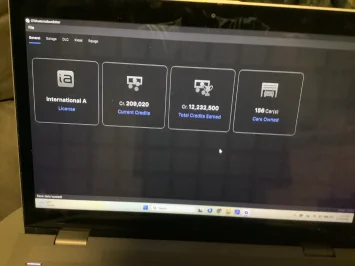
Just a tip: If you press PrtSc on your keyboard, it will take a screenshot, and after you press it, all you have to do is paste it. This will, quite literally, provide a better picture of what's on your screen. What you posted was not a screenshot, though.Attached is a screenshot.
GENIUS!!!!!! THANK YOU!!!!Wait, I think I see the problem here. I believe you're going to the wrong section on the PS3. The memory card utility is where saves for PS1 and PS2 saves are stored; PS3 saves are located in the "Save Data Utility (PS3)" section. You need to go to "Save Data Utility (PS3) to copy your save to and from the console. Try copying your save there and let me know how it goes. 👍
Understood, I'll try to update the OP sometime to cover this along with some other things. Been meaning to do this for a long time now, but I forget this thread even exists half the time, so I haven't done it yet.
Just a tip: If you press PrtSc on your keyboard, it will take a screenshot, and after you press it, all you have to do is paste it. This will, quite literally, provide a better picture of what's on your screen. What you posted was not a screenshot, though.
So you said this earlier, and I said this:Without clear step by step instructions.... I just get lost.
I didn't even realize this, but I actually already covered this in the OP at some point last year:Understood, I'll try to update the OP sometime to cover this along with some other things.