User Decals - A Tutorial On How To Make .SVG (Request in separate thread)

  • Thread starter Thread starter daan
  • 1,546 comments
  • 469,141 views
So I want to make a decal. Simple logo, a stylized helmet and some text, just one color. My source is a PNG with transparent background, good quality, 2118*2118 pixels.

I use Inkscape. I open the PNG. I do the automatic path tracing with default settings except scans set to 2 because there's just 1 color.

I ungroup multiple times and then do object to path.

I save as optimized SVG with all the options for a small filesize....
....and I still end up with a 2.8MB(!) SVG.

What am I doing wrong?


-edit- Nvm, figured it out. You have to delete several backgrounds before saving. Down to 19kb now, what a difference😄
 
Last edited:
in need of some help about the mysterious ways of gradients. I have this old svg from GTS days, which is useful for helmet tops. I want to change the color gradient, say from this blue-white to a deep green-to-white linear. I did ungroup all paths and change the colors manually in each "square" using Inkscape.

it uploads and displays correctly in the browser, but in the game all gradients are like fused together, like so:
WhatsApp Image 2026-01-12 at 17.17.17.webp


with Illustrator, achieve basically the same results (with a much smaller file size for some reason) using the "recolor artwork" feature

this is what it should look like:
1768249195883.webp

how do I avoid this?
 

Attachments

Last edited:
in need of some help about the mysterious ways of gradients. I have this old svg from GTS days, which is useful for helmet tops. I want to change the color gradient, say from this blue-white to a deep green-to-white linear. I did ungroup all paths and change the colors manually in each "square" using Inkscape.

it uploads and displays correctly in the browser, but in the game all gradients are like fused together, like so:View attachment 1505598

with Illustrator, achieve basically the same results (with a much smaller file size for some reason) using the "recolor artwork" feature

this is what it should look like:
View attachment 1505601
how do I avoid this?
Gradients are a tricky thing in GT7 because GT7 ignores the transformation for the gradient fill in the svg file.

Both of your svg files do not work for me btw. The text encoding seems to be wrong as I see that English is not your first language.

I'm only familiar with Inkscape.

You probably know already that setting the gradient(s) should be the absolute last step in creating the graphic. After that, DO NOT move any object or reorganize the layers.

When setting the gradient fill, do it for each object separately. Then save the graphic as "optimized SVG" in the "save as" menu.
 
Its probably been said before, But can someone offer guidance
Why does this happen when converting to SVG
1770370957107.webp
 
in need of some help about the mysterious ways of gradients. I have this old svg from GTS days, which is useful for helmet tops. I want to change the color gradient, say from this blue-white to a deep green-to-white linear. I did ungroup all paths and change the colors manually in each "square" using Inkscape.

it uploads and displays correctly in the browser, but in the game all gradients are like fused together, like so:

with Illustrator, achieve basically the same results (with a much smaller file size for some reason) using the "recolor artwork" feature

this is what it should look like:

how do I avoid this?
Its probably been said before, But can someone offer guidance
Why does this happen when converting to SVG
1200×329
52,5 kB
Gentlemen, check out the first post in this thread. It links to several tutorials how to convert pixel images to SVGs and also on how you can get gradients to work in GT7.

@Daz2708: You should use a higher quality source image. This one for example, which I found through a google image search for "hotel de la source spa francorchamps", is a much better base for an SVG conversion.
 
If you have a minute, i have a quick question.
I am struggling to get black to appear fully black after i uploaded the decal in the livery editor in GT7.
Somehow my black isn't black but more of a drak gray. Is anyone else experiencing this or just me?

I can't seem to get around it.
Thank you for your help and time, much appreciated!

Greetz
PsychoSpike
 
If you have a minute, i have a quick question.
I am struggling to get black to appear fully black after i uploaded the decal in the livery editor in GT7.
Somehow my black isn't black but more of a drak gray. Is anyone else experiencing this or just me?

I can't seem to get around it.
Thank you for your help and time, much appreciated!

Greetz
PsychoSpike
Sometimes colors in the game can look a little off (but still be correct), depending on lighting. There are ways to check if your decal has true black or not:
  • In the game, you can put the decal on a car, then add a standard shape decal (e.g., a circle or a square) and select the regular black color for the latter. Move the decals so the color regions you want to compare overlap. This way you can quickly see if the shades of gray are off in your decal.
  • On your computer you can open the SVG in a text editor of your choice. You then see the code that makes the decal vector drawing. The code contains color information for each shape, usually written in syntax like this: fill="#e9022d". The six characters behind the "#" designate the shade of color. For pure black, the code should be #000000. If you cannot find this code in your SVG file, you have no true black shapes in there.
You can also attach the SVG here and someone can check it. Just make sure you ZIP the file before upload, otherwise a bug in the forum software will make your SVG unusable.
 
Sometimes colors in the game can look a little off (but still be correct), depending on lighting. There are ways to check if your decal has true black or not:
  • In the game, you can put the decal on a car, then add a standard shape decal (e.g., a circle or a square) and select the regular black color for the latter. Move the decals so the color regions you want to compare overlap. This way you can quickly see if the shades of gray are off in your decal.
  • On your computer you can open the SVG in a text editor of your choice. You then see the code that makes the decal vector drawing. The code contains color information for each shape, usually written in syntax like this: fill="#e9022d". The six characters behind the "#" designate the shade of color. For pure black, the code should be #000000. If you cannot find this code in your SVG file, you have no true black shapes in there.
You can also attach the SVG here and someone can check it. Just make sure you ZIP the file before upload, otherwise a bug in the forum software will make your SVG unusable.
Hi, thank you for your reply.

Unfortunately neither a whole lot of checking and even changing of the hex code for the color, playing with different svg exporting options in illustrator does not do the trick for me. It's driving me nuts and i think this is how it is. Can you check if this is the same for you please? I think it's a thing with the rendering engine after upload.

I have tried decals from other creators, of which i have provided a screenshot of. In this picture there is only one black square, colored with the livery editor, the rest are decals, which are intended to have black.

The only logical step for me is to separate every black in colored decals. I'd rather not have to do that :) this makes other issues with distortion.

Anyway, have a great rest of your day. Thank you for your time!
Greetz
Spike
 

Attachments

  • 19c43155f7d95-screenshotUrl.webp
    19c43155f7d95-screenshotUrl.webp
    96.1 KB · Views: 3
Can you upload the decal here? I'd like to take a look at it to help you with the issue. Please note that currently a bug in the forum software corrupts attached SVG files, so please ZIP it before attaching or upload it elsewhere and share the link here. Thanks!
 
Last edited:
"Is anyone else experiencing this or just me?"
"Can you check if this is the same for you please?"

Can you confirm you do not have any issue with rich black? I would hate to waste your time checking a file when it's actually impossible to get rich black.

Thank you
 
Last edited:
"Is anyone else experiencing this or just me?"
"Can you check if this is the same for you please?"

Can you confirm you do not have any issue with rich black? I would hate to waste your time checking a file when it's actually impossible to get rich black.

Thank you
I can't check this in the game right now, but I could check the SVG now. Your choice. I can tell you that I've had the impression that a color is not "dark enough" in the game, but your specific issue with black is not something I have seen, though I certainly believe its possible.

Note that rich black is a term from printing. It is a CMYK color mixture which produces a rich black (hence the name) when printed on paper. However, rich black in CMYK is not the same as black in RGB. In the RGB color space, CMYK rich black will be a very dark gray. The game operates in RGB color space.
 
Last edited:
I can't check this in the game right now, but I could check the SVG now. Your choice. I can tell you that I've had the impression that a color is not "dark enough" in the game, but your specific issue with black is not something I have seen, though I certainly believe its possible.

Note that rich black is a term from printing. It is a CMYK color mixture which produces a rich black (hence the name) when printed on paper. However, rich black in CMYK is not the same as black in RGB. In the RGB color space, CMYK rich black will be a very dark gray. The game operates in RGB color space.

You're right, let's call it "pure black" then for this purpose. (the "blackest black" of the last tab of the livery editor in the colorpicker in game)
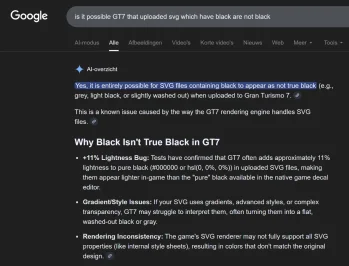
Gemini calls it a 11% lighting bug for uploaded svg(see screenshot in attachment)

Forget it for now, but please when you get a chance check this ingame, do.
If you can, then get back to me.
Have a great day
 

Attachments

  • Capture.webp
    Capture.webp
    90.8 KB · Views: 4
Ah, of course. Didn’t look too much at the toolbar because I noticed it was different from Photoshop. But the pen tool here autofills the pen tool selection as I trace. How do I stop this from happening? Sorry for being a noob.

Yeah that’s better. :)
Don't worry, Illustrator can be tricky at first. I would suggest looking up some tutorials to have more of a grasp of the pen tool and its functionality and at first maybe quirky behavior.
For example, but there are many others


Good luck!
 
Last edited:
Forget it for now, but please when you get a chance check this ingame, do.
If you can, then get back to me.
Have a great day
Yeah, so I can confirm that black in uploaded SVG isn't displayed as actual black in the game.

To test this I created a color swatch with 20 shades of black/very dark grey in Illustrator and uploaded it into the game as an SVG. Before upload I made sure with a text editor that all color codes are correct in the SVG file. I marked each color in my SVG as follows:

"undef." = "undefined" = no color code given at all in the SVG code
"0" = Color code #000000 (should be the blackest possible black)
"1" = Color code #010101
"2" = Color code #020202
"3" = Color code #030303
...

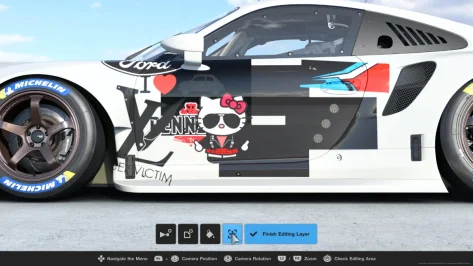
So here is a screenshot from the livery editor with the color swatch on a car. At the bottom I put a generic shape on the car and manually colored it black in the game. As you can see, the black defined in the game is much darker than any "black" on my color swatch.

19c4e78d3e736-screenshotUrl.webp


At the top I put another generic shape on the car and tried to match the color of the blackest black in my SVG in the game's color editor. I was able to match the "undef." and "0" part of my SVG with the pure red (H = 0), a tad of color saturation (S = 3) and quite a bit of brightness (V = 11):

19c4e78c82a78-screenshotUrl.webp


Conclusion: You cannot achieve actual black in the game even if your SVG code is 100% correct. The only way to create actual black is by manually choosing a color in the game and selecting black (H/S/V all "0").

That said, this difference may be hard to spot if you don't have much time to look at it and no brightness reference (an actual black area next to an "SVG-black" area). Driving a car or watching a replay, you probably wouldn't see it without said reference. Nonetheless, this is an unfortunate bug in the game because it means that colors can be off in the game even if you make sure they are 100% on point in your SVG.

If you want actual black in your decals, separate all of those parts, put them in an own SVG file, overlay them with your original decal and manually set them to black in the game.
 
Last edited:
Yeah, so I can confirm that black in uploaded SVG isn't displayed as actual black in the game.

To test this I created a color swatch with 20 shades of black/very dark grey in Illustrator and uploaded it into the game as an SVG. Before upload I made sure with a text editor that all color codes are correct in the SVG file. I marked each color in my SVG as follows:

"undef." = "undefined" = no color code given at all in the SVG code
"0" = Color code #000000 (should be the blackest possible black)
"1" = Color code #010101
"2" = Color code #020202
"3" = Color code #030303
...

So here is a screenshot from the livery editor with the color swatch on a car. At the bottom I put a generic shape on the car and manually colored it black in the game. As you can see, the black defined in the game is much darker than any "black" on my color swatch.

View attachment 1512676

At the top I put another generic shape on the car and tried to match the color of the blackest black in my SVG in the game's color editor. I was able to match the "undef." and "0" part of my SVG with the pure red (H = 0), a tad of color saturation (S = 3) and quite a bit of brightness (V = 11):

View attachment 1512677

Conclusion: You cannot achieve actual black in the game even if your SVG code is 100% correct. The only way to create actual black is by manually choosing a color in the game and selecting black (H/S/V all "0").

That said, this difference may be hard to spot if you don't have much time to look at it and no brightness reference (an actual black area next to an "SVG-black" area). Driving a car or watching a replay, you probably wouldn't see it without said reference. Nonetheless, this is an unfortunate bug in the game because it means that colors can be off in the game even if you make sure they are 100% on point in your SVG.

If you want actual black in your decals, separate all of those parts, put them in an own SVG file, overlay them with your original decal and manually set them to black in the game.
Thanks interceptor for this in-depth anwser!
That means i'll be doing more black separating as a default. Shame though!
Otherwise a very nice system for a game.

Have a great day
 
Guys, I got this svg from an AI generator. It's huge because the AI doesn't know how to optimize, but neither do I. So, as I want to learn, could someone give me some pointers as to what I could do to make the file smaller? Is it actually possible? I have access to Inkscape and Illustrator as well.

flames.webp


Yeah, so I can confirm that black in uploaded SVG isn't displayed as actual black in the game.

To test this I created a color swatch with 20 shades of black/very dark grey in Illustrator and uploaded it into the game as an SVG. Before upload I made sure with a text editor that all color codes are correct in the SVG file. I marked each color in my SVG as follows:

"undef." = "undefined" = no color code given at all in the SVG code
"0" = Color code #000000 (should be the blackest possible black)
"1" = Color code #010101
"2" = Color code #020202
"3" = Color code #030303
...

So here is a screenshot from the livery editor with the color swatch on a car. At the bottom I put a generic shape on the car and manually colored it black in the game. As you can see, the black defined in the game is much darker than any "black" on my color swatch.

View attachment 1512676

At the top I put another generic shape on the car and tried to match the color of the blackest black in my SVG in the game's color editor. I was able to match the "undef." and "0" part of my SVG with the pure red (H = 0), a tad of color saturation (S = 3) and quite a bit of brightness (V = 11):

View attachment 1512677

Conclusion: You cannot achieve actual black in the game even if your SVG code is 100% correct. The only way to create actual black is by manually choosing a color in the game and selecting black (H/S/V all "0").

That said, this difference may be hard to spot if you don't have much time to look at it and no brightness reference (an actual black area next to an "SVG-black" area). Driving a car or watching a replay, you probably wouldn't see it without said reference. Nonetheless, this is an unfortunate bug in the game because it means that colors can be off in the game even if you make sure they are 100% on point in your SVG.

If you want actual black in your decals, separate all of those parts, put them in an own SVG file, overlay them with your original decal and manually set them to black in the game.
yeah, this is a "feature". Back in GTS days, you could actually get true black on a decal. But then they introduced a special black color paint in the game and decided to ruin the livery editor in the process.
 
Last edited:
Guys, I got this svg from an AI generator. It's huge because the AI doesn't know how to optimize, but neither do I. So, as I want to learn, could someone give me some pointers as to what I could do to make the file smaller? Is it actually possible? I have access to Inkscape and Illustrator as well.
An SVG file basically is just a bunch of text - you can imagine it as instructions for a technical draftsperson (desenhista técnico) to draw a shape. The instructions define a canvas size first (basically an empty sheet of paper of a given width and height) and then draw points, lines and curves on it. Closed shapes can be filled with a single color or a color gradient. All of this needs to be described in a "programming language" called XML. You can see this code if you open an SVG file in a text editor.

Gran Turismo limits file size to 15 kB, which equals roughly 15,000 characters of text in an SVG file. This sounds like quite a lot at first, but it really isn't. Drawing one single point is already 76 characters, so 76 Bytes. A complete decal for GT7 can easily have a thousand points and more. Then there are shapes, curves, lines, color gradients etc., all needing to be described in XML code. So the 15,000 characters fall quickly.

Additionally, programs like Inkscape and Illustrator cannot be aware what you need for GT7. You can minimize the number of points and curves with some functions of these softwares, but you need to specifically aim at what you need: draw the shape you want with as few points and as simple shapes as you can. For example, a straight line between two points needs much less XML code instructions than a curve between the same points. Thus, the smallest possible amount of points and using the most simple shapes is key.

For your blue flames, I would proceed like this in Illustrator:
  • Look at the colors first. The dark blue flames in the background have some details at the edges in a very slightly darker blue. I would sacrifice one of these blue colors and combine both shapes into one dark blue color. This reduces data and you very likely wouldn't be able to spot this detail in the game anyway. Do the same for other colors, very similar colors should be combined to one color if possible. For this image you can easily get away with 5 colors, maybe even only 4.
  • Then understand the layering of the image. Dark flames are in the background, covered by lighter flames in front. So you can only see the top parts of the dark blue flames, what happens with them further down is invisible because the lighter blue flames cover that up. This is an opportunity for you to keep the details of the dark blue flames only at the top where they are visible. Everything below that can be simplified into a few points with straight lines inbetween. It will look 100% identical but this simplification will use much less XML code in the SVG file.
  • In addition, remove cutouts in shapes which will later be invisible anyway. E.g., there are a few bright round spots in your image which cover whatever is behind. In the SVG's code there will very likely be a cutout in each layer behind each round spot. Remove that cutout from every single layer. It will not be visible later because the round spot covers it, but every cutout is extra XML code in your file.
  • Work your way through the image layer by layer, back to front. Make each layer as simple as possible:
    • Everything that is covered by the next layer in front can be simplified into a few points and straight lines.
    • Remove every detail (e.g. a cutout) in a shape if it is covered by the next layer in front.
  • After this, go through each layer again and simplify it (in Illustrator: Object -> Path -> Simplify). The default settings are already pretty good, so you can usually just accept it and move on to simplifying the next layer. This function looks at the existing shape and tries to "mimic" it visually with as few points and curves as possible. How effective this is and how good the result looks is very dependent on the shape you feed it. This image of flames is a great base for this simplification, you could easily reduce the number of points by at least 50%, very likely more. Repeat this for each layer.
  • When done, perform this from the menu: Object -> Artboards -> Fit to Artwork Bounds. This will fit the size of your canvas to the dimensions of your drawing, otherwise the decal will be needlessly small or cut off at the edges in the game. Also this shows if you have some hidden layers that you missed to remove: the edges of the canvas should touch the outmost points of your flames on all four sides. If this isn't the case, there is a point or a shape in the background you missed to delete. Delete everything you do not need, it just makes your SVG file larger.
  • Save the SVG in profile SVG 1.1. Other profiles (like SVG tiny 1.1) will yield a smaller SVG file, but are unreadable and thus unusable in the game.
  • Check out the SVG file size in your file browser. If it is below 15 kB you are good and you can upload it into the game. If it is above 15kB, go to svgomg.net and upload the file there. This website minimizes your SVG code to make the smallest possible file. The default settings usually are good, just make sure to UNcheck "Compare gzipped". This is a file compression that is perfectly valid for SVG code, but unreadable by GT7.
  • Download the optimized SVG from the website by clicking on the turquoise download button.
  • If your file is now below 15kB, you are done and can upload it. If it is still above 15kB, you can either load it back into Illustrator and simplify it further (maybe accepting some minor optical simplifications) or you can accept to split it up into separate files (e.g. 3 of 6 layers in one SVG file, the remaining 3 layers in a second SVG file), then upload all of them into the game and combine the layers there.
yeah, this is a "feature". Back in GTS days, you could actually get true black on a decal. But then they introduced a special black color paint in the game and decided to ruin the livery editor in the process.
That's a bummer, but thanks for the info!
 
Last edited:
Back