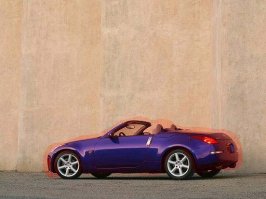
why does this keep happenening

  • Thread starter Thread starter SupraFly
  • 23 comments
  • 845 views

SupraFly

(Banned)
Messages
1,492
im using ps7, why does this keep happeneing?
 

Attachments

  • 350zroadster6 copy.jpg
    350zroadster6 copy.jpg
    31.7 KB · Views: 79
What? The orange outline around the car?

You'd have to tell us what you are doing that causes this.
 
i tried to change the car color, and all it does is goes right over the old one,

i used

lassoed
layer via copy
then the ctrl+b thing
 
Are you outlining, exactly what you want colored?
 
*hates the Z as a convertable*

Anyway, explain a little further on what it is you are doing.

Also, Nissan has many pics of the Z in orange already. Maybe that will help your problems. :D


:p
 
might be a feathering problem...
 
ok tihs is what i do, i follow the usual procedure to change the color of a car, then i bring up the little window that lets you change it to what color you want, in this pic for example, the blue stays, while the color i want it to be just goes right over it.
 
yeh, I think he may have a layer style on there that he doesn't know about...
 
It's definitely quick mask. Weird. Have you tried turning all the layers on and off and see if it disappears?
 
Originally posted by Jpec07
might be a feathering problem...

That would be my guess as well.
 
so what should i do? this getting real annoying
 
how do i fix this problem, im dying to do some chops!!!
 
Change the feather radius to 0 px. You can change this when you open up the polygonal lasso tool. The setting is in the toolbar at the top.
 
it is at 0 already, what about the anti aliased thing?
 
s.fly i not good enough . but for me if i want to change the colour i never use layer via copy or anything . just highlight all cars with p/lasso tool than go to image-adjustment-colour balance that wat i do ...so thats only wat i do with chop . others u can asking
the xpert here ...ok . sorry i cant help u but i try to ...im sorry ...:)
 
Originally posted by SupraFly
it is at 0 already, what about the anti aliased thing?
No! Leave anti-alias on. Otherwise, your chops will be all jaggy.

I wouldn't be the AA doing it. Go to Select > Feather and make sure it's at 0.

Other than that, make sure your not in Quick Mask mode.

Originally posted by drifterzzz
s.fly i not good enough . but for me if i want to change the colour i never use layer via copy or anything . just highlight all cars with p/lasso tool than go to image-adjustment-colour balance that wat i do ...so thats only wat i do with chop . others u can asking
the xpert here ...ok . sorry i cant help u but i try to ...im sorry ...:)
Alright, I've had a look at some of your other posts and I was wondering, do you pay attention in English at school? I don't mean to sound mean or anything, but would you mind taking the time to spell your words correctly?

And, I prefer using the Hue/Saturation box. Select your car. Deselect the parts you don't want coloured (headlights, etc) and press Ctrl+U. This brings up the Hue/Saturation box. Check the Colorize option and adjust the Hue and Saturation. Don't worry about Lighting.
 
ok i use lot of chat language . i think you all understand . ok im sorry . btw that what i do when i change colour but for fibef hood i use hue/satuarion . because that is easy compare to others
...:D
 
how do i turn off quick mask mode if it is on?
 
Originally posted by drifterzzz
ok i use lot of chat language . i think you all understand . ok im sorry . btw that what i do when i change colour but for fibef hood i use hue/satuarion . because that is easy compare to others
...:D
That is somewhat better.

And I can't really answer your question SupraFly. Masking is probably the only thing I don't know how to do in Photoshop. Try looking in the Photoshop Help section (Help > Photoshop Help or simply press F1) for Quick Mask.
 
Shannon, not everyones first language is English. So please ty to use a level of reasoning here.
 
Originally posted by Shannon
That is somewhat better.

And I can't really answer your question SupraFly. Masking is probably the only thing I don't know how to do in Photoshop. Try looking in the Photoshop Help section (Help > Photoshop Help or simply press F1) for Quick Mask.

tried help file
 
Back