- 240

- Саратов
Of course, DISC_LF (and others) must refer to the objects you need.But I guess then the name of DISC_LF matters
Of course, DISC_LF (and others) must refer to the objects you need.But I guess then the name of DISC_LF matters


There is Highpoly and Highpoly. With a good optimization, you can get a very decent result with not much, especially if you focus on the driving part and ban everything in hidden sight on the model (between doors, under-hood, under-trunk, etc). The vast majority of converted models on AC running around 1.5/2M polys are not "that" detailed, they are simply way too informative on the wrong parts. A good shave and you get the same result with 400/500K on the driving side.I thought about this myself. We'll have loads of AC ports early days that may not look so good in game compared to official content.
Might be cutting out part of the audience though. ACE hasn't had modding confirmed yet, so may never happen, and high poly cars are something to be avoided for some of us, especially VR users, even with a 4090. And to be honest, I can't tell the difference between a 200k model and an 800k model in game anyway. I'd rather keep the performance (and grid sizes) high.


Sorry, but no, you didn't add the new timing.no, I also took over the shift timing
[SHIFT_ANIMATION]
BLEND_TIME=100
POSITIVE_TIME=220
STATIC_TIME=10
NEGATIVE_TIME=100
PRELOAD_RPM=10500
INVERT_SHIFTING_HANDS=0[SHIFT_ANIMATION]
BLEND_TIME=100
POSITIVE_TIME=330
STATIC_TIME=10
NEGATIVE_TIME=300
PRELOAD_RPM=20500
INVERT_SHIFTING_HANDS=0


Yes, the name of the brake discs matters but as far as I know the important thing is that the name indicated in the brakes.ini file is identical to the one you chose for the meshes, regardless of what it is. But I can tell you that sometimes they don't work at all."But I guess then the name of DISC_LF matters".

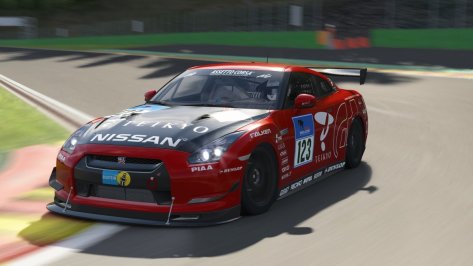
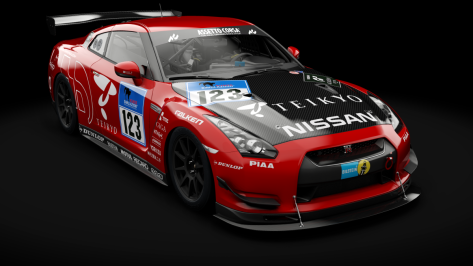
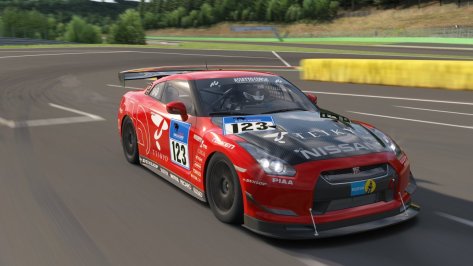
1st question: is that part of the car mapped?2024 Adrenalin Motorsport Team Mainhatten Wheels #651
Skin for GUERILLA Mods
https://www.mediafire.com/file/5ruiqpscfsovd6z/2024_Adrenalin_Motorsport_Team_Mainhatten_Wheels_%23651.rar/file
View attachment 1368303
View attachment 1368304
View attachment 1368305
Guys, how can I paint this part?
View attachment 1368306

Transferring your entire AC setup is easy, especially since your existing hard drive still works. There are only three folders you need to have everything the same on your new drive, unless of course you did any strange customizing to where things are located.since i will switch to new hard drive soon, do u think it will be easy transfering all my ac data onto the new one? and it will also replace my current windows harddrive, which i will readd also. but i still have plenty of downloads for ac stuff on it, can i still access it/the downloads folder after switching to another harddrive?
I recently did thissince i will switch to new hard drive soon, do u think it will be easy transfering all my ac data onto the new one? and it will also replace my current windows harddrive, which i will readd also. but i still have plenty of downloads for ac stuff on it, can i still access it/the downloads folder after switching to another harddrive?


I have done it just this way to transfer AC to my new build High End PC (in preparation for ACETransferring your entire AC setup is easy, especially since your existing hard drive still works. There are only three folders you need to have everything the same on your new drive, unless of course you did any strange customizing to where things are located.
All you need to do is follow these simple steps. This assumes all drive letters will be the same.
1.) Get new drive setup with Windows installation.
2.) Install Steam and the base assettocorsa game from Steam. This is so Steam knows the game exists.
3.) Close Steam temporarily to avoid any conflicts. Delete the 'assettocorsa' folder that Steam creates and copy the 'assettocorsa' folder from your backup\original drive.
4.) Go to the Documents folder on your original drive and copy the 'Assetto Corsa' folder to the Documents folder on your new drive.
5.) Go to the C:\Users\'yourname'\appdata\local folder on your original drive. Copy the 'ACContentManager' folder to the C:\Users\'yourname'\appdata\local folder on your new drive. I may have that folder name (ACContentManager) wrong because i'm not in front of my racing rig at the moment to verify it. But it will be obvious which folder it is. I know it starts with AC.
6.) Possibly optional. Depending on where you placed the Content Manger program file, you may also need to copy that folder to your new drive.
7.) Re-launch Steam and enjoy AC again.
If you do everything correctly, you should have an exact duplicate of your current AC installation (mods, settings and all) on your new hard drive. I've done this at least three time in my AC lifespan and it works every time.
 ) 2 weeks ago and AC works without a problem. The only thing you must do, if you transfer AC to a new PC or drive with fresh installed windows, start AC once via steam without Content Manager. Steam will then install some additional stuff, AC needs to run.
Oops. I forgot about that step. Better go update my instructions. Thanks for the reminder.I have done it just this way to transfer AC to my new build High End PC (in preparation for ACE

quick question, can i still access the "local appdata" after installing the new harddrive?Transferring your entire AC setup is easy, especially since your existing hard drive still works. There are only three folders you need to have everything the same on your new drive, unless of course you did any strange customizing to where things are located.
All you need to do is follow these simple steps. This assumes all drive letters will be the same.
1.) Get new drive setup with Windows installation.
2.) Install Steam and the base assettocorsa game from Steam. This is so Steam knows the game exists.
3.) Close Steam temporarily to avoid any conflicts. Delete the 'assettocorsa' folder that Steam creates and copy the 'assettocorsa' folder from your backup\original drive.
4.) Go to the Documents folder on your original drive and copy the 'Assetto Corsa' folder to the Documents folder on your new drive.
5.) Go to the C:\Users\'yourname'\appdata\local folder on your original drive. Copy the 'AcTools Content Manager' folder to the C:\Users\'yourname'\appdata\local folder on your new drive.
6.) Possibly optional. Depending on where you placed the Content Manger program file, you may also need to copy that folder to your new drive.
7.) Re-launch Steam and run AC once from Steam. Exit and enjoy AC again using Content Manager.
If you do everything correctly, you should have an exact duplicate of your current AC installation (mods, settings and all) on your new hard drive. I've done this at least three times in my AC lifespan and it works every time.

quick question, can i still access the "local appdata" after installing the new harddrive?
can i dm u about further questions?Yes you can but you will need to 'take ownership' of the folder first to be able to do so. - https://www.revouninstaller.com/user-tutorials/install-and-remove-take-ownership/ Download the 'InstallTakeOwnership' registry file and it will add Take Ownership in the right click menu, makes life much easier than messing with the folder permissions. When I do a clean OS install (usually every 6 months or so) this is the first thing I install.
You will then need to go to the Users folder on the old hard drive, then right click on your username and use the take ownership option. A command prompt window will open and show it changing the folder permissions. You will probably need to do this for each main directory in the user folder that you want to access.
yeah why notcan i dm u about further questions?


Only 1 skin missing and then i release :-)yes, @MrHunt is doing the missing skins

Question about camtool.
So i wanna use some camtool on Pyyer Le Mans 2024 Track but the Camtool Data is only connected to the Original Track Layout.
How can i move the Cam Data file to work on those layouts?

 www.overtake.gg


Me trying to install that tool on my pc...... After some search a found the tool "ImageMagick", that does a batch conversion of DDS files. But you have to do it with a command line or a BAT-file... First...

I'm not sure to have understood right, but why don't simply use the CompactGUI. As it works for the cars, it works also for the tracks. Which means less space occupied in the SSD without doing anything that requires a lot of work or a irreversible editing of the textures?I've downloaded some of the fantastic track texture updates by ClimaxF1 in the last time.
Resources by ClimaxF1
But as the DDS files are uncompressed, they really need too much disc space and the installation with content manager just doubles the needed disc space. As I see absolutely no difference between uncompressed and compressed track textures in a racing game, so I was looking for an easy way to batch convert these DDS files to DXT5 without mipmaps to save 75% of the disc space. But none of the normal graphics programs like GIMP, PAINT.NET or IRFANVIEW has a function to batch convert DDS files.
After some search a found the tool "ImageMagick", that does a batch conversion of DDS files. But you have to do it with a command line or a BAT-file.
First install the program on your PC, then create a new TXT-file and copy the following text to it and save it.
C:\Programs\ImageMagick-7.1.1-Q16-HDRI\magick mogrify -format dds -define dds:mipmaps=0 -define dds:compression=dtx5 *.dds
(Note: "C:\Programs\ImageMagick-7.1.1-Q16-HDRI" has to be the installation path on your personal PC. Maybe, you have to change it, if you have installed ImageMagick somewhere else)
In the next step you have to rename the TXT-File to something like "convert_dds.bat" (or what you like).
If your TXT-File has no .txt extension, you have to activate "show file extensions for known file types" in Windows Explorer first.
Now you can copy the BAT-file to the folder with the uncompressed DDS-files and start it with a double-click. The conversion process can take some time, if there are a lot of DDS-files in the folder. Of course you can also use the BAT-file in skin folders with large uncompressed car skin DDS-files. (do we really need a single skin folder with more than 300 MB in a racing game like AC? This means 9 GB for a field with 30 cars).
If you want to create the DDS-files with mipmaps, just change "dds:mipmaps=0" to "dds:mipmaps=1" in the BAT-file. This increases the resulting file size by 25% and I don't think, that the game needs mipmaps any more as they are automatically created at the start of a race. But maybe someone else has more information about that. By the way RSS doesn't use mipmaps for their skins anymore.
I hope this helps a little bit to save some of the limited disc space on your SSD and will increase the performance of the game on low end PCs.
Of course you can use CompactGUI on top and you will gain even more disc space.I'm not sure to have understood right, but why don't simply use the CompactGUI. As it works for the cars, it works also for the tracks. Which means less space occupied in the SSD without doing anything that requires a lot of work or a irreversible editing of the textures?




cool, a good step to save even more space... but I would love to be able to use this on a folder (and finally on the whole content\tracks folder) to have it convert all DDS which aren't already compressed in that folder AND ALL SUBFOLDERS...I've downloaded some of the fantastic track texture updates by ClimaxF1 in the last time.
Resources by ClimaxF1
But as the DDS files are uncompressed, they really need too much disc space and the installation with content manager just doubles the needed disc space. As I see absolutely no difference between uncompressed and compressed track textures in a racing game, so I was looking for an easy way to batch convert these DDS files to DXT5 without mipmaps to save 75% of the disc space. But none of the normal graphics programs like GIMP, PAINT.NET or IRFANVIEW has a function to batch convert DDS files.
After some search a found the tool "ImageMagick", that does a batch conversion of DDS files. But you have to do it with a command line or a BAT-file.
First install the program on your PC, then create a new TXT-file and copy the following text to it and save it.
C:\Programs\ImageMagick-7.1.1-Q16-HDRI\magick mogrify -format dds -define dds:mipmaps=0 -define dds:compression=dtx5 *.dds
(Note: "C:\Programs\ImageMagick-7.1.1-Q16-HDRI" has to be the installation path on your personal PC. Maybe, you have to change it, if you have installed ImageMagick somewhere else)
In the next step you have to rename the TXT-File to something like "convert_dds.bat" (or what you like).
If your TXT-File has no .txt extension, you have to activate "show file extensions for known file types" in Windows Explorer first.
Now you can copy the BAT-file to the folder with the uncompressed DDS-files and start it with a double-click. The conversion process can take some time, if there are a lot of DDS-files in the folder. Of course you can also use the BAT-file in skin folders with large uncompressed car skin DDS-files. (do we really need a single skin folder with more than 300 MB in a racing game like AC? This means 9 GB for a field with 30 cars).
If you want to create the DDS-files with mipmaps, just change "dds:mipmaps=0" to "dds:mipmaps=1" in the BAT-file. This increases the resulting file size by 25% and I don't think, that the game needs mipmaps any more as they are automatically created at the start of a race. But maybe someone else has more information about that. By the way RSS doesn't use mipmaps for their skins anymore.
I hope this helps a little bit to save some of the limited disc space on your SSD and will increase the performance of the game on low end PCs.
hmmm ... compacting an uncompressed DDS with CompactGUI, would it take up as little space as compacted compressed DDS file?I'm not sure to have understood right, but why don't simply use the CompactGUI. As it works for the cars, it works also for the tracks. Which means less space occupied in the SSD without doing anything that requires a lot of work or a irreversible editing of the textures?
The command line "magick mogrify -format dds -define dds:mipmaps=0 -define dds:compression=dtx5 *.dds" in the BAT-File works without a problem for me. That's how I found it on the ImageMagick homepage. But maybe it also works without "magick".cool, a good step to save even more space... but I would love to be able to use this on a folder (and finally on the whole content\tracks folder) to have it convert all DDS which aren't already compressed in that folder AND ALL SUBFOLDERS...
right now the batch file would only take the *.DDS files in the folder where you run the batch file.
Anyone here can write the batchfile to recursively go over all subfolders too ? (out of my league)
hmmm ... compacting an uncompressed DDS with CompactGUI, would it take up as little space as compacted compressed DDS file?
My gut says no.
So I did the test with CF1_Monaco_1966 ... and it still makes quite a difference!
First I installed the skin , and for example one of the biggest DDS files , doorwind_01.dds is 64MB.
With Compactor , this file takes on disk 12.3 MB.
I then run the batch file (btw I think it contained an error, it should be : "mogrify.exe -format dds -define dds:mipmaps=0 -define dds:compression=dtx5 *.dds" so without the "magic " part...)
the doorwind_01.dds is now 16 MB in size (and takes 16MB on disk as it is no longer compacted)
A new run with Compactor makes it take only 4.71 MB on disk !
On the total folder size of 813MB for this 1 track skin, it saved me 106.8 MB of extra diskspace when first compressing the DDS files with this ImageMagick tool, so +- 13% gain still compared to not compressing the dds files.
It would be a bad idea, if the game would not use mipmaps anymore. But that's not the case. If a DDS-file has no mipmaps, the game creates them at the start of a race. So no need to include them in the DDS-files. So you can reduce the DDS file size by 20%. Some weeks ago, there was already a discussion about mipmaps here. Maybe someone else can give us further infos.mipmaps=0 is a bad idea, that would be almost same as having AF off.
Thats also the reason why png's are inferiour to dds, not mipmaps possible.
AMD users set to 16x in AC
Nvidia users - turn off in AC and set to 16x in nv-sys panel!
View attachment 1368466


Not sure but, I think @leBluem might know a thing or two about thatIt would be a bad idea, if the game would not use mipmaps anymore. But that's not the case. If a DDS-file has no mipmaps, the game creates them at the start of a race. So no need to include them in the DDS-files. So you can reduce the DDS file size by 20%. Some weeks ago, there was already a discussion about mipmaps here. Maybe someone else can give us further infos.